

Related Blogs
Key Takeaways
- Docker is an open-source platform developers use to containerize apps with dependencies, configurations and libraries.
- Understanding the fundamentals of Docker, such as Docker Images, Containers, Port, Hub and Compose, is important. For example, Containers help streamline and separate the runtime environment. This ensures consistent app behavior and avoids compatibility issues.
- Keep your Docker build simple by removing all unnecessary files from the Docker build. Create a Dockerignore file to achieve this. It also speeds up the build process and minimizes the image size.
- Using Docker for React apps gives you benefits like consistent dev environments, easier deployments, and better scalability.
- Continuously monitor the containers by tracking essential metrics and regularly running vulnerability scans to ensure improved performance and security.
Today, consistency is one of the biggest challenges developers face when building and deploying applications. A React application often depends on various libraries, configurations, and system requirements that can behave differently across environments. These differences can cause unexpected bugs, compatibility issues, or even deployment failures. This is where Docker becomes valuable. Combining React with Docker is a powerful approach in modern web development. For a React development company, Dockerizing a React app simplifies workflows by eliminating environment-related problems and ensuring smooth collaboration across teams.
In this blog, we’ll examine Docker in detail: related concepts, reasons for Dockerization, a step-by-step Dockerization process, and recommended best practices.
1. What is Docker?
Docker is an open-source platform that helps developers package applications together with their dependencies, libraries, and configurations into containers. Containers provide a lightweight, isolated runtime environment that ensures applications behave consistently across different systems, avoiding compatibility issues and making it easy to move applications between cloud platforms or local machines.
Docker streamlines development and deployment by making applications portable, scalable, and reliable. It enables teams to focus on building and delivering software more quickly while improving collaboration between development and operations.
2. Some Docker Concepts to Look Into
Let’s understand the fundamental concepts associated with the Docker container platform.
2.1 Docker Images
A Docker image is a lightweight, reusable package that contains everything required to run an application: source code, libraries, dependencies, and configuration files. It serves as a template for creating Docker containers. Built from a set of instructions in a Dockerfile, each layer of an image is cached to improve efficiency and speed up subsequent builds. Docker images provide consistency across environments by ensuring the application runs the same way on any system.
There are multiple layers in a Docker image:
- Base Image: The starting point for creating a Docker image. It typically contains a minimal operating system, such as Ubuntu or Alpine, and essential tools. Developers build on the base image by adding code, dependencies, and configurations to create a customized application image.
- Parent Image: An existing Docker image used as the foundation for building new images. A parent image may be a minimal base image or another layered image. Developers extend the parent image by adding code, libraries, and configuration to create a new customized image.
- Image Layers: Docker images are composed of layers, where each layer represents a filesystem change created by a build instruction (for example, a RUN, COPY, or ADD command). Layers are read-only and immutable, which ensures consistency. Unchanged layers are cached and reused, making builds faster and saving storage space.
- Container Layer: The writable layer added on top of a Docker image when a container runs. It records changes like new files, modifications, and deletions made during execution. This layer is temporary and discarded when the container stops, leaving the original image layers unchanged and immutable for reuse.
- Docker Manifest: A JSON document that stores metadata about an image, including its layers, operating system, and architecture. A manifest (or manifest list) ensures the correct image variant is selected for different platforms, allowing cross-platform compatibility. By using manifests, Docker can efficiently manage and deploy images across diverse environments.
2.2 Docker Container
A Docker container is a lightweight, runnable instance of a Docker image that includes an application and all its dependencies. While the image acts as a blueprint, the container provides the actual execution environment. Containers run in isolation, ensuring applications behave consistently across different systems without interference. They are portable, efficient, and easy to start, stop, or remove, making them ideal for development, testing, and production. With minimal resource overhead, containers enable flexible, scalable, and reliable application deployment.
2.3 Container Port
A container port is the internal port where an application inside a container listens for requests. To make the app accessible from outside, for example, via a browser or an API client, you must map this port on the host machine. You can create this mapping with Docker’s -p option or by using Docker Compose.
2.4 Docker Hub
Docker Hub is a cloud-based, centralized repository where developers can store, share, and manage Docker images. They can pull official images, such as Node or Nginx, or push their own images for applications like a React app. This makes sharing and deploying applications across teams and environments simple and efficient.
2.5 Docker Compose
Docker Compose is a tool for managing and running multi-container Docker applications using a docker-compose.yml or compose.yml file. In these files, each service can be configured with parameters such as image, volumes, environment variables, networks, ports, and more. It simplifies the management of multiple interconnected containers with a single docker-compose up command.
3. How to Dockerize a React App?
We’ll explore the detailed procedure for Dockerizing a React application. Before deploying a React application into a Docker container, ensure the following prerequisites:
- Install Node.js and npm on your computer to build and test your React app.
- Docker is installed on your system.
- You have a basic knowledge of how React and Docker work.
3.1 Project Folder Structure
my-react-app/ ├── public/ ├── src/ ├── package.json ├── .dockerignore └── Dockerfile |
3.2 Step-by-Step Instructions
Go through the implementation guide below:
Step 1: Create a React Application
Note: Make sure node version 22 is installed.
If you don’t have a React app yet, you can quickly set one up using Create React App or the Vite command.
(npm create vite@latest my-react-app) cd my-react-app |
Step 2: Create a Dockerfile
In the root folder of your project, create a new file named Dockerfile. It includes instructions to create the Docker image.
FROM node:22 AS dev WORKDIR /app COPY package*.json ./ RUN npm install COPY . . EXPOSE 5173 CMD ["npm", "run", "dev", "--", "--host", "0.0.0.0"] |
Step 3: Create a .dockerignore File
In your project’s root directory, create a .dockerignore file to exclude unnecessary files from the Docker build. This reduces the image size and speeds up the build process.
node_modules npm-debug.log .git .gitignore README.md .dockerignore Dockerfile |
Step 4: Build the Docker Image
Execute the following command from your project’s root directory to create the Docker image.
docker build -t my-react-app. |
Step 5: Run the Docker Container
Start a container from the built image:
docker run -d -p 3005:5173 --name my-react-container my-react-app |
Step 6: Test the Application
You can verify that the container is up and running using Docker Desktop.
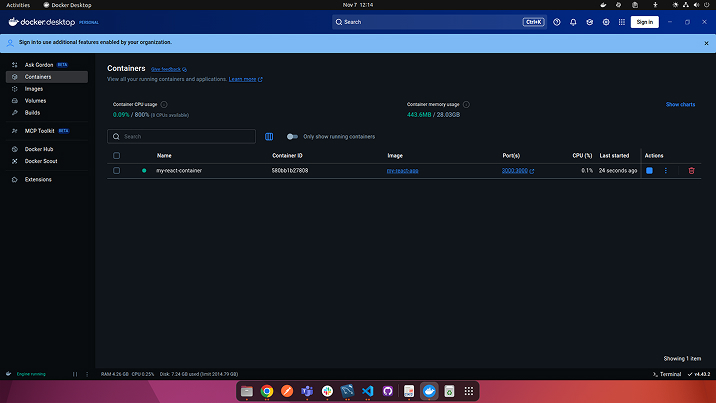
Green status indicates that the container has started.
Open a browser and go to http://localhost:3005 to check that your React app is running within the Docker container.
Step 7: Stop and Remove the Container (Optional)
After testing is finished, stop the container and remove it from your system.
docker stop my-react-container docker rm my-react-container |
4. Importance of Dockerizing Your Application
Are you still wondering why React app development should include a containerization step? Application development itself is a significant task that requires substantial resources, learning, and time. Dockerization can seem like an extra burden, but the points below clarify its benefits.
4.1 Streamlined CI/CD Pipelines
The encapsulation of the application and its dependencies in a Docker container ensures consistency across development, testing, and production environments. This simplifies the setup of build and test stages in the CI pipeline, reduces environment-related issues, and makes testing and deployment more reliable.
4.2 Efficient Resource Management
Docker containers are lightweight and use the host operating system’s kernel, rather than a separate guest OS, which reduces memory and disk overhead compared with virtual machines. As a result, you can run more containers on the same machine, simplifying application scaling and improving resource utilization in production environments.
4.3 Simplified Dependency Management
Docker allows defining an application’s libraries and dependencies in a configuration file, eliminating “works on my machine” issues. It serves as a blueprint for building a consistent container image, preventing conflicts between team members and facilitating collaboration.
4.4 Consistency Across Environments
By packaging the entire environment with the application, Docker creates a self-contained and consistent unit. This eliminates the common problem of software running in one environment but failing in another. The application, therefore, always runs with the same dependencies, regardless of what is installed on the host machine.
5. React App Dockerization Best Practices
Remember the following best practices when building and deploying Dockerized React applications:
- Keep Your Dockerfile Simple: Avoid making the Dockerfile overly long by adding unnecessary layers. Group related commands where appropriate to reduce the total number of layers and minimize image size. A clean, simple Dockerfile is easier to understand, debug, and maintain.
- Use Multi-stage Builds: Multi-stage builds are a powerful Docker feature that enables the creation of optimized, efficient images. By separating build and runtime environments, you eliminate unnecessary build-time dependencies and produce smaller runtime images.
- Regularly Update Base Images: Regularly updating base images is crucial for maintaining a secure and well-performing containerized environment. Outdated base images can introduce security vulnerabilities and performance issues; update frequently to incorporate the latest security patches and improvements.
- Use Docker Compose for Development: Docker Compose simplifies development of multi-container applications by letting you define services in a single docker-compose.yml file. It also helps manage environment variables and dependencies between services, and makes local orchestration and testing easier.
- Monitoring and Securing Containers: Monitoring container performance and securing production containers are essential. Recommended practices include:
- Use Prometheus, Grafana, or similar tools to collect and visualize container metrics.
- Perform vulnerability scanning of images with tools such as Docker Scout or Trivy.
- Run containers with least privilege by using non-root users whenever possible.
6. Final Thoughts
Dockerizing React applications offers benefits such as consistent development environments, streamlined deployment pipelines, and improved scalability. Implementing the best practices detailed in this guide ensures that Dockerized React applications are optimized for performance, security, and maintainability.

Parind Shah
Parind Shah is responsible for frontend innovations at TatvaSoft. He brings profound domain experience and a strategic mindset to deliver exceptional user experience. He is always looking to gain and expand his skill set.
Want to Hire Skilled Developers?



Comments
Leave a message...