


In our earlier blog, we learned how to do Metadata injection using Pentaho. In today’s article, we’ll learn how to integrate Pentaho (.prpt) reports with a web application.
Typically, to generate reports, it requires working with Pentaho report designer and deploying “.prpt” file onto BI server. But what if we want to use Pentaho reports inside different types of web applications?
This article will serve as a tutorial to integrate your .prpt report with Java web application. You can apply different filters to report and pass parameters from JSP page, to generate the desired reports in different formats.
This article is written based on a real implementation of code and libraries. The only thing you need to consider before starting is to use the same versions of Pentaho SDK, Pentaho Reporting Engine, and Pentaho Report Designer, to avoid any issues related to a data source.
Steps to Integrate a .prpt Report with a Java Application
1. Create “customer.prpt” File from Pentaho Reports Designer with Necessary Requirements.
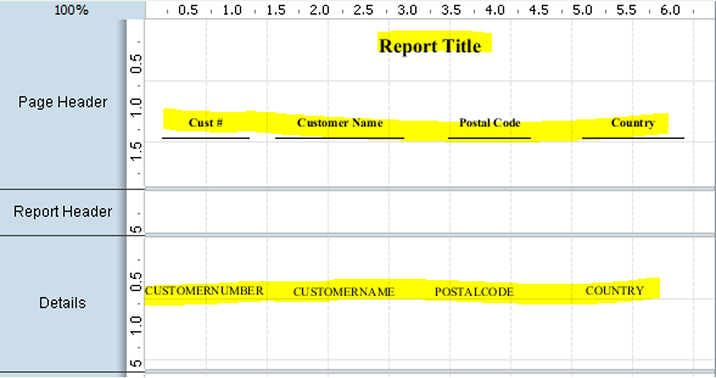
2. Create Dynamic Web Application from Eclipse IDE or Your Choice of Tool, and Put “customer.prpt” Report inside WebContent Folder.
3. Create a JSP Page with Necessary Parameters and Submit the Request to Web Container.
Sample JSP:
try{ Class.forName("com.mysql.jdbc.Driver").newInstance(); Connection connection = DriverManager.getConnection("jdbc:mysql://190.166.7.11:3306/DB_NAME?user=root&password=root"); Statement statement = connection.createStatement() ; resultset =statement.executeQuery("SELECT * FROM customers") ; %> <center> <select name="cname"> //parameter name associated with report <option value="-1"> – Select -</option> <% while(resultset.next()){ %> <option><%= resultset.getString("CUSTOMERNAME")%> </option> <% } }catch(Exception e){ System.out.println("Exception"+e); } %> </select> </center> |
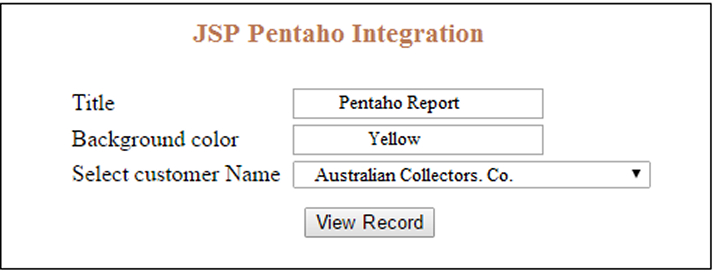
Note: you can pass customer name from a database to find a match in a report. Parameter names in report and JSP page must be same.
4. Set the Parameters into “ReportGeneraterClass” and Fetch the Desired Data Related to Customer Name.
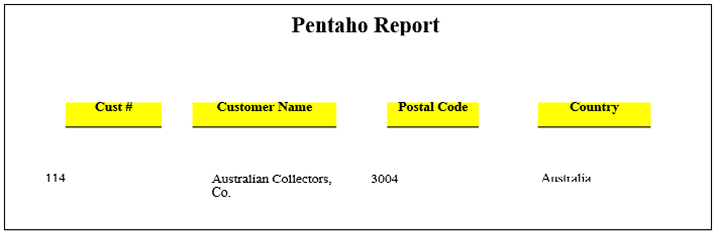
ReportGeneraterClass: A Java class that contains code to read and write a report in different formats.
We hope that the above tutorial would help you to generate the required reports. For more details, please feel free to contact us.



Comments
Leave a message...