


Visual representation provides better clarity and understanding of a particular concept compared to textual representation. This is an essential requirement in a world or market that is driven by data. D3.js is one of the most robust JavaScript libraries that helps create engaging and dynamic data visualizations. For personalized React development services, D3 helps not only take maximum benefit of the data but also display it in the most enhanced and accurate manner. This article is your comprehensive guide on how to use D3.js and React to create and customize charts in your web applications.
What is D3.js?
The full form of D3.js is Data-Driven Documents, which is an open-source library based on JavaScript. Developers use it to build dynamic, interactive, and custom data visualizations directly in a web browser. It allows the data scientists and developers to leverage web technologies like CSS, SVG, and HTML to transform complex data sets into engaging visuals such as diagrams and flowcharts.
Additionally, the core functions of D3.js include mapping the data to the DOM, enabling data-driven transformations, and ensuring seamless data binding. Using this approach helps keep visual representation relevant and accurate, which might seem trivial but is rather a critical requirement in industries such as finance and healthcare.
D3.js is a flexible library supporting intricate animations and real-time updates, allowing you to modify the content and appearance of the web apps according to changing data in an instant without affecting the users interacting with the application.
How to Create a Bar Chart and a Pie Chart using D3?
Here, we provide a step-by-step guide to building a bar chart and a pie chart with the help of D3 in your React application.
Step 1: Create an App Using the Command Below
npm init vite d3-demo -- --template react |
Now, use the command given below to navigate to the app folder.
cd d3-demo |
Install the ‘d3’ by running this command.
npm i d3 |
Now, run the application with the following command
npm run dev |
Step 2: Bar Chart Initialization
Use the given code to update the App.jsx file.
import BarChart from './Components/BarChart' function App() { return ( <div style={{ padding: "20px" }}> <BarChart /> </div> ); } export default App; |
Next, create the new file ComponentsBarChart.jsx to prepare the bar chart. The D3 will help create the chart’s svg and its ref. This ref is used to initialize the svg element as per the given data that is to be visualized in the bar chart.
The system adds the data in a label-value format, where the label holds the x-axis data and the y-axis data. Since the system initializes the SVG according to the data, it performs this action in useEffect with data dependency. So, whenever any changes occur in the data, related components immediately re-render, updating the user interface with the latest data.
import { useRef, useEffect } from "react"; import * as d3 from "d3"; const data = [ { label: "January", value: 12 }, { label: "February", value: 8 }, { label: "March", value: 20 }, { label: "April", value: 5 }, { label: "May", value: 18 }, { label: "June", value: 25 }, { label: "July", value: 14 }, { label: "August", value: 22 }, { label: "September", value: 0 }, { label: "October", value: 17 }, { label: "November", value: 6 }, { label: "December", value: 23 }, ]; function BarChart() { const chartRef = useRef(); useEffect(() => { const chartSvg = d3.select(chartRef.current); }, [data]); return <svg ref={chartRef} />; } export default BarChart; |
Along with the height and width of the chart, we add margin to the useEffect as well. Without using the margin, no name will be visible on the x or y axes. Then, use the select function in D3 to select the svg and assign a height and width. Use margin to calculate the innerWidth and innerHeight, added to the left and bottom.
const width = 800; const height = 500; const margin = { bottom: 30, left: 30 }; const chart = chartSvg.attr("width", width).attr("height", height); const innerWidth = width - margin.left; const innerHeight = height - margin.bottom; |
Here’s what we have to do to define the x and y axes in our chart.
Use D3’s scaleband function for x axes to provide the width range as the argument on how much width should be used for x axes. The above code shows it is used from margin.left to width – margin.left. Use labels from the data array to provide a domain for the x-axis.
If you do not use padding, the bars in your bar chart will have no gaps between them and will mesh with each other. Keep the padding in the range of 0 to 1, where 0 means no spacing and 1 means full spacing, to keep the gap between the bars.
const x = d3 .scaleBand([margin.left, innerWidth]) .domain(data.map((d) => d.label)) .padding(0.2); |
Similarly, for y axes, use D3’s scaleLinear function to provide the range from-to of height as an argument. It offers the minimum and maximum points for the y axes.
const y = d3 .scaleLinear([innerHeight, margin.bottom]) .domain([0, d3.max(data, (d) => d.value)]); |
Use actual data to update the svg. Select every React element from the SVG before feeding the data. Now enter and append a function handle, creating a React element for each data. Set height, width, x, y and fill attribute to each React element. X() and y() functions position the bars correctly along the x and y axes.
You can set up the bar’s width using the bandwidth() function. But here we will be using the formula mentioned in the code below to set the height. We can also provide a color for the bar and do it conditionally as well.
chartSvg .selectAll("rect") .data(data) .enter() .append("rect") .attr("x", (d) => x(d.label)) .attr("y", (d) => y(d.value)) .attr("width", x.bandwidth()) .attr("height", (d) => innerHeight - y(d.value)) .attr("fill", (d) => { if (d.value < 15) { return "#dc6363"; } else { return "#6bd300"; } }); |
Next, show the label’s name and value on the axes. Add the g element to the x axes in svg, use the transform attribute to update its position, and then call axisBottom.
chart .append("g") .attr("transform", `translate(0, ${innerHeight})`) .call(d3.axisBottom(x)); |
Display the label name and its value on the axes. Add the g element in svg for the y axes and use the transform attribute to update its positioning, then call axisLeft.
chart .append("g") .attr("transform", `translate(${margin.left},0)`) .call(d3.axisLeft(y)); |
Now, the code for your Barchart component will look like:
import { useRef, useEffect } from "react"; import * as d3 from "d3"; const data = [ { label: "January", value: 12 }, { label: "February", value: 8 }, { label: "March", value: 20 }, { label: "April", value: 5 }, { label: "May", value: 18 }, { label: "June", value: 25 }, { label: "July", value: 14 }, { label: "August", value: 22 }, { label: "September", value: 0 }, { label: "October", value: 17 }, { label: "November", value: 6 }, { label: "December", value: 23 }, ]; function BarChart() { const chartRef = useRef(); useEffect(() => { const chartSvg = d3.select(chartRef.current); const width = 800; const height = 500; const margin = { bottom: 30, left: 30 }; const chart = chartSvg.attr("width", width).attr("height", height); const innerWidth = width - margin.left; const innerHeight = height - margin.bottom; const x = d3 .scaleBand([margin.left, innerWidth]) .domain(data.map((d) => d.label)) .padding(0.2); const y = d3 .scaleLinear([innerHeight, margin.bottom]) .domain([0, d3.max(data, (d) => d.value)]); chartSvg .selectAll("rect") .data(data) .enter() .append("rect") .attr("x", (d) => x(d.label)) .attr("y", (d) => y(d.value)) .attr("width", x.bandwidth()) .attr("height", (d) => innerHeight - y(d.value)) .attr("fill", (d) => { if (d.value < 15) { return "#dc6363"; } else { return "#6bd300"; } }); chart .append("g") .attr("transform", `translate(0, ${innerHeight})`) .call(d3.axisBottom(x)); chart .append("g") .attr("transform", `translate(${margin.left},0)`) .call(d3.axisLeft(y)); }, [data]); return <svg ref={chartRef} />; } export default BarChart; |
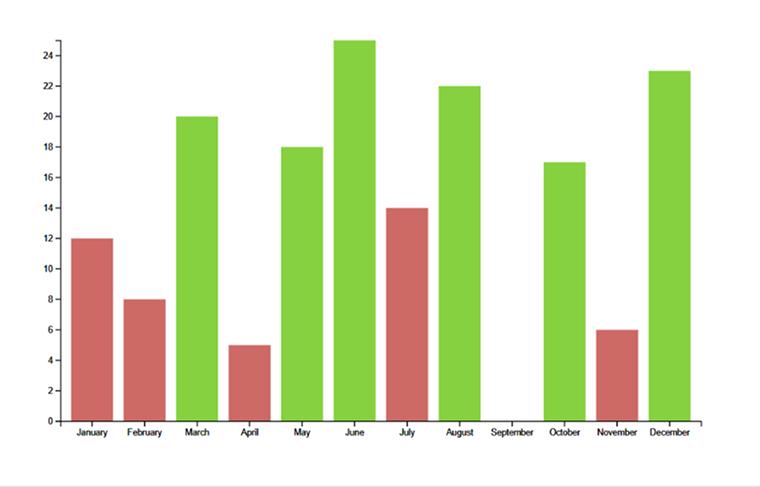
Running the code above will provide you with the following output.
Step 3: Pie Chart Initialization
Add the given code to the App.jsx file.
import BarChart from "./Components/BarChart"; import PieChart from "./Components/PieChart"; function App() { return ( <div style={{ display: "flex", gap: "100px", padding: "20px", width: "100%", height: "100%", justifyContent: "center", alignItems: "center", }} > <BarChart /> <PieChart /> </div> ); } export default App; |
Create a new file Components/PieChart.jsx to initialize the pie chart. As D3 designs the chart’s SVG, we create its ref and use it to initialize the SVG element. Similar to the bar chart, we have to add the data in the label value format. Then, initialize the SVG as per the entered data to visualize the pie chart. We execute all these actions in useEffect with dependency, which allows components to rerender and updates the UI whenever data changes.
import { useRef, useEffect } from "react"; import * as d3 from "d3"; const data = [ { label: "Jan", value: 12 }, { label: "Feb", value: 8 }, { label: "Mar", value: 20 }, { label: "Apr", value: 5 }, { label: "May", value: 18 }, { label: "Jun", value: 25 }, { label: "Jul", value: 14 }, { label: "Aug", value: 22 }, { label: "Sept", value: 0 }, { label: "Oct", value: 17 }, { label: "Nov", value: 6 }, { label: "Dec", value: 23 }, ]; function PieChart() { const chartRef = useRef(); useEffect(() => { const chartSvg = d3.select(chartRef.current); }, []); return <svg ref={chartRef} />; } export default PieChart; |
In useEffect, we initialize the chart’s height and width and then add the radius for the pie chart. Use the select function from D3 to select a relevant svg and assign height, width and radius. Add a transform attribute to position your pie chart in the middle. For grouping, add the g element in SVG.
const width = 500; const height = 500; const radius = Math.min(width, height) / 2; const chart = chartSvg .attr("width", width) .attr("height", height) .append("g") .attr("transform", `translate(${width / 2}, ${height / 2})`); |
Initialize the pi from the D3 and offer data for each value. Now, initialize the pie data.
const createPie = d3.pie().value((d) => d.value); const pieData = createPie(data); |
Use the arc function to define the svg’s path. It enables you to define the inner and outer radius, determining from where the chart would start and where it would end.
const arcGen = d3.arc().innerRadius(100).outerRadius(radius); |
Run the function given below to generate default colors for your pie chart.
const colors = d3.scaleOrdinal(d3.schemeObservable10); |
Add the data to the chart and append the path element in the SVG. Use the d attribute to ask the chart to draw the shape depending on the provided data. Fill the default colors from schemeObservable10 from D3 to the chart.
chart .selectAll("path") .data(pieData) .enter() .append("path") .attr("d", arcGen) .attr("fill", (_, i) => colors(i)); |
This lets you see your chart on the interface, but since you have not added the label yet, you will not be able to see which shape belongs to which data. Initialize the arc to determine at what point of the radius we need to add the label.
const label = d3 .arc() .innerRadius(radius * 0.85) .outerRadius(radius * 0.85); |
Select the text elements and provide data to the chart elements to add the label to the pie chart. If you leave any of the data values empty, you will not see the shape for that specific value. So, it’s best to filter out the empty value, avoiding the display of the label for that value as a shape.
Use text to provide actual label text. Place each label to its respective shape using the transform attribute. Calculate the midpoint of the shape with the help of the centroid function, moving the label to the mentioned position. To fulfill additional requirements, you can use other attributes like font-size, font-weight, text-anchor, etc.
chart .selectAll("text") .data(pieData) .enter() .append("text") .filter((d) => d.data.value > 0) .text((d) => `${d.data.label}(${d.data.value})`) .attr("transform", (d) => `translate(${label.centroid(d)})`) .attr("font-size", "11px") .attr("font-weight", "700") .attr("text-anchor", "middle") |
Now that every step for creating the pie chart is complete, the code for your pie char will look like:
import { useRef, useEffect } from "react"; import * as d3 from "d3"; const data = [ { label: "Jan", value: 12 }, { label: "Feb", value: 8 }, { label: "Mar", value: 20 }, { label: "Apr", value: 5 }, { label: "May", value: 18 }, { label: "Jun", value: 25 }, { label: "Jul", value: 14 }, { label: "Aug", value: 22 }, { label: "Sept", value: 0 }, { label: "Oct", value: 17 }, { label: "Nov", value: 6 }, { label: "Dec", value: 23 }, ]; function PieChart() { const chartRef = useRef(); useEffect(() => { const chartSvg = d3.select(chartRef.current); const width = 500; const height = 500; const radius = Math.min(width, height) / 2; const chart = chartSvg .attr("width", width) .attr("height", height) .append("g") .attr("transform", `translate(${width / 2}, ${height / 2})`); const createPie = d3.pie().value((d) => d.value); const pieData = createPie(data); const arcGen = d3.arc().innerRadius(100).outerRadius(radius); const colors = d3.scaleOrdinal(d3.schemeObservable10); chart .selectAll("path") .data(pieData) .enter() .append("path") .attr("d", arcGen) .attr("fill", (_, i) => colors(i)); const label = d3 .arc() .innerRadius(radius * 0.85) .outerRadius(radius * 0.85); chart .selectAll("text") .data(pieData) .enter() .append("text") .filter((d) => d.data.value > 0) .text((d) => `${d.data.label}(${d.data.value})`) .attr("transform", (d) => `translate(${label.centroid(d)})`) .attr("font-size", "11px") .attr("font-weight", "700") .attr("text-anchor", "middle") }, []); return <svg ref={chartRef} />; } export default PieChart; |
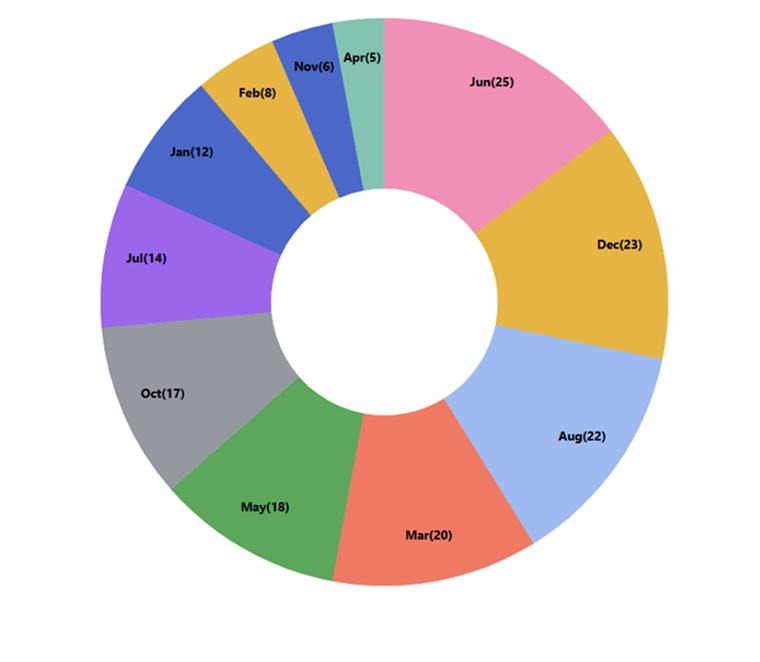
Running the above code will give you the output as shown below.
Benefits of Using D3.js
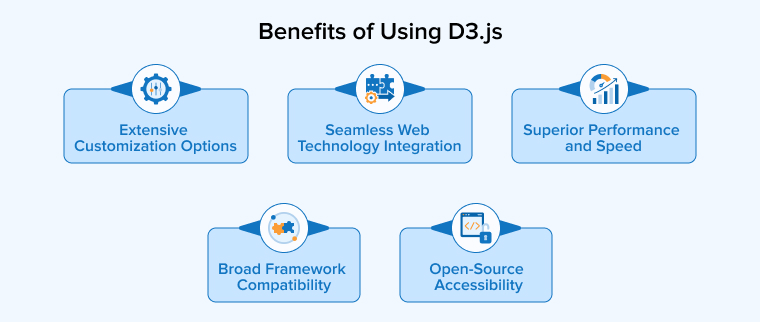
D3.js proves to be highly beneficial for data visualisation. Let us consider a few important advantages.
Extensive Customization Options
D3.js offers total control over visualizations to the developers, allowing them to design unique styles, animations, and custom handlers. With this kind of flexibility, D3.js ensures that users can fine-tune every aspect of the output to meet their specific design preferences or unique project requirements.
Broad Framework Compatibility
The library is highly adaptable and integrates seamlessly with popular modern frameworks like Angular.js, React.js, and Ember.js. Thanks to its cross-platform compatibility, D3.js can cater to a wide range of project requirements and diverse development environments effortlessly.
Superior Performance and Speed
Experts consider D3.js superior in speed and efficiency compared to other popular visualization tools such as Chart.js, Tableau, and QlikView. Its swift execution makes D3.js an ideal solution for processing and rendering even the most extensive and intricate datasets.
Open-Source Accessibility
D3.js is an open-source platform. So, developers can easily explore, modify, and customize its internal source code. As a result, this empowers the developers to leverage the full potential of the library to serve their specific technical or project needs.
Seamless Web Technology Integration
The platform supports seamless integration with basic web technologies like HTML, CSS, and SVG to build scalable visual representations. It provides shapes, lines, and interpolation to create comprehensive and informative diagrams directly in the web browser.
Conclusion
D3 and React are both popular libraries that interact seamlessly with each other. However, pairing them is where the problem lies. This article provides comprehensive guidance on using D3 to create simple bar and pie charts and then customizing them using labels. So, having knowledge of how the unique syntax of this library works and experience using it can be quite helpful. Feel free to reach out to us in case you face issues with using the D3 library or any other issues regarding React development.

Parind Shah is responsible for frontend innovations at TatvaSoft. He brings profound domain experience and a strategic mindset to deliver exceptional user experience. He is always looking to gain and expand his skill set.



Comments
Leave a message...