

Modern web apps are expected to be not just fast but also responsive, not only reliable but also engaging. These apps are to be used across multiple platforms with expectations of a native experience on each. Traditional web apps are not up to the mark; only progressive web apps can deliver the best of web and native apps in a single package.
Vue is the best option for building PWAs. Collaborate with a reputed VueJS development company to make the most out of the Vue.js framework, including its PWA plugin and Vue CLI, to build apps that deliver high performance and a native like experience without requiring deployment through app stores.
This article explains the concept of PWA, its benefits, and how to build a fully functional progressive web app, test, and customize it using Vue.
What is a Progressive Web Application?
A Progressive Web Application (PWA) is an enhanced version of a website that functions like a native mobile app but can still be accessed through a standard web browser. Technologies such as JavaScript, CSS, and HTML are used to create PWAs, delivering a consistent and seamless user experience across different platforms.
PWAs offer advanced features, including offline functionality, push notifications, and high-speed reliability. By leveraging modern web capabilities like service workers, businesses can develop cost-effective, high-performance solutions that provide the engagement and user experience of a dedicated application without significant web-related issues.
What are the Benefits of a PWA?
Building PWAs benefits both businesses and users by offering high web flexibility combined with native-like app performance across multiple platforms.
High Speed and Performance
PWAs have a lightweight architecture. In comparison, it is approximately 90% smaller than native Android applications. This significantly reduces load time, leading to higher user engagement and satisfaction rates. High speed and improved native-like performance are compelling reasons for a business to switch to or develop PWAs.
Robust Offline Functionality
Unlike traditional web apps, PWAs don’t rely on an internet connection to function. It uses Service Workers and local caching technologies, such as IndexedDB, to offer offline functionality. The device stores all necessary data directly, ensuring that the app remains functional and responsive even in low-bandwidth or offline environments.
Enhanced User Engagement and Conversion
Features like push notifications and allowing users to add the app to their device’s home screen help bring users back to the app. This increases the engagement rate, and higher engagement improves the chances of conversion. So, these native-like features provide an immersive experience, driving higher retention and revenue.
Cost-Effective and Efficient Development
Developing separate native applications for different platforms, like Android and iOS, is significantly more costly than building a progressive web app. A progressive web app uses a single codebase based on JavaScript, HTML, and CSS that works across all platforms, thereby reducing the maintenance costs. Moreover, it doesn’t require any app store download. The browser immediately reflects app updates, removing the need for users to manually download the updates.
Advanced Security and SEO Visibility
PWAs are served through HTTPS, which provides built-in encryption to protect sensitive data and the app from security risks and cyber threats. Since the app is web-based, its content can be indexed by the search engines, improving its visibility. This makes it easy to discover the PWAs through standard browser URLs, increasing organic reach.
Setting Up Vue with PWA
In this section, we will explore the step-by-step process for setting up Vue with a PWA.
1. Adding PWA Support to an Existing Vue CLI Project
If you have an existing Vue application, then implementing this approach is ideal for converting it into a progressive web app.
Step 1: Install Vue CLI (If Not Installed)
npm install -g @vue/cli |

Verify: vue –version

Step 2: Add PWA Plugin to Existing Vue App
Navigate to your existing Vue project folder:
cd your-existing-vue-app |

Run: vue add pwa
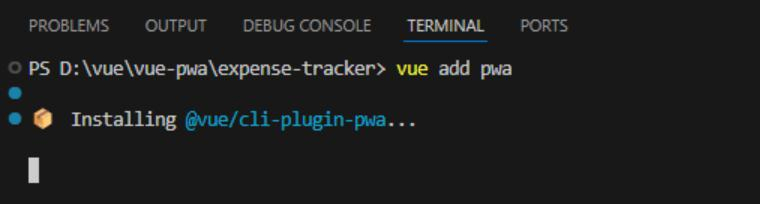
Running this command does the following:
- Installs @vue/cli-plugin-pwa
- Adds registerServiceWorker.js
- Updates main.js
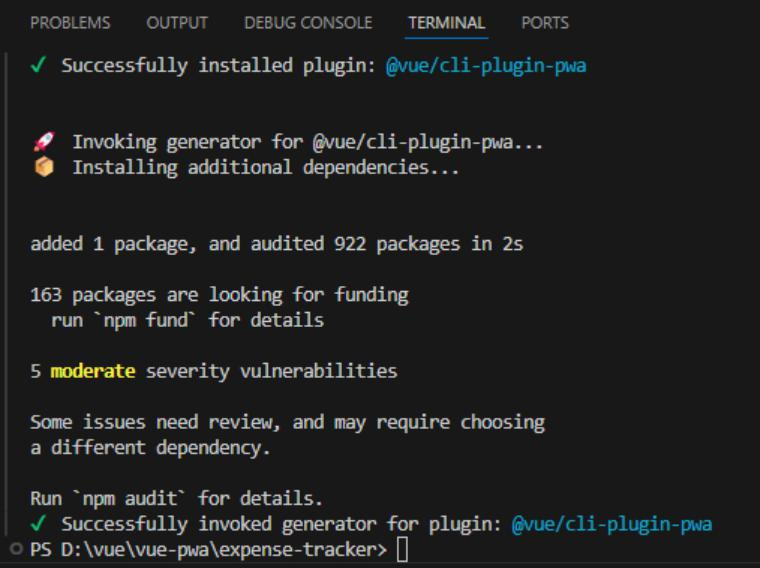
2. Service Worker Behavior
- Service worker is NOT active in development
- Generated only during production build
- Prevents aggressive caching during development
3. Testing a PWA
Create the application and serve the production build to test the PWA functionality. For faster testing, you can serve it locally. It can also be deployed across platforms like Netlify and Vercel that automatically offer HTTPS.
npm run build && npx http-server dist |
Run the given command in your terminal
npm run build |
This command automatically generates the manifest.json and Workbox service worker files inside the dist/ folder. Now serve your dist folder using http-server.
npx http-server dist |
When you use the http-server to serve the production build (dist folder), the site is also served over plain HTTP and doesn’t use the SSL certificate. This makes browsers consider the site not secure. As a result, PWS features like the Install App option won’t appear.
Even without HTTPS, the browsers will treat LocalHost as a secure origin. So, always use http://localhost instead of an IP address to access the app when testing a PWA locally. This allows the service worker and install prompt to function correctly.
Use http://localhost:8080 instead
The browser will display an “Install App” button in the address bar or menu once the application is ready and served from a secure source like localhost or a secure domain. Choose this option to add the web app as a PWA to your device.
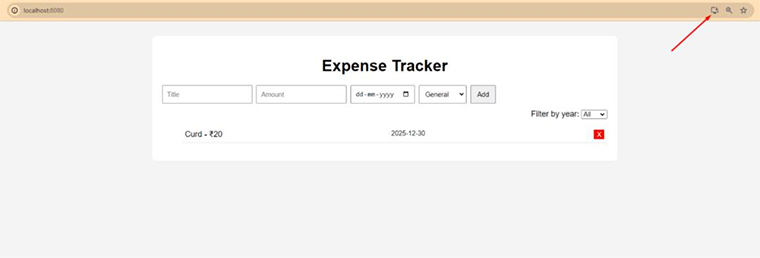
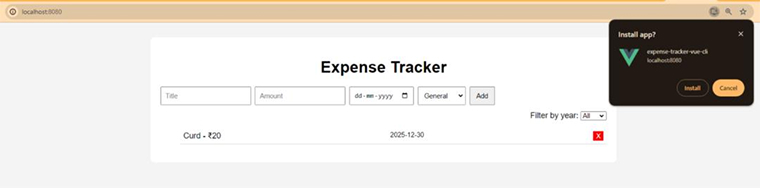
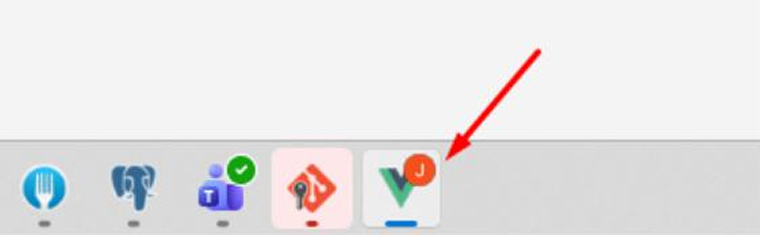
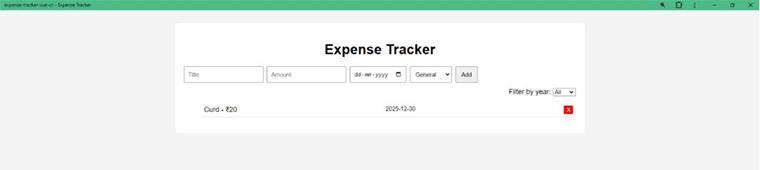
Once the app is installed, you can access it just like any other native app.
- It opens in a standalone window without the browser UI
- It appears in the system’s application launcher or on the desktop
- It can be pinned to the taskbar or home screen
Even though powered by web technologies, a PWA loads quickly, and if properly configured, can be used without an active internet connection. All of these, and it still provides a native-like app experience.
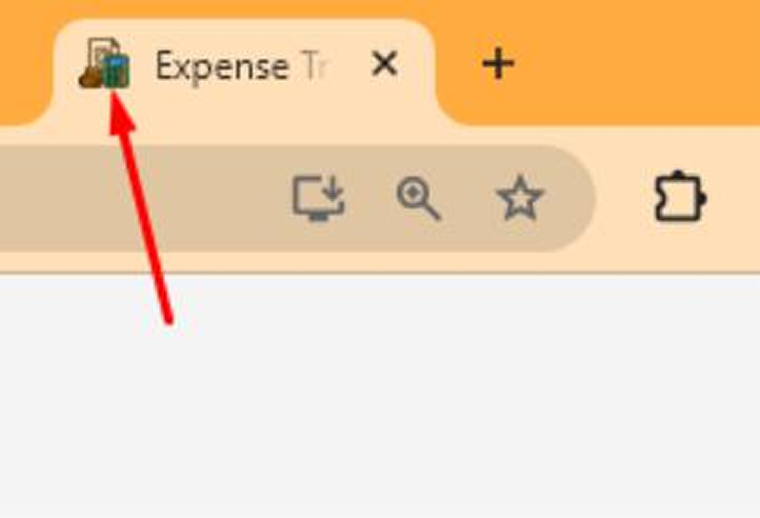
When creating a Vue PWA with Vue CLI, a default icon, i.e., a Vue logo, is included in the public/icons folder and referenced in the manifest.json. It is just a placeholder from Vue so the PWA can have an icon out of the box.
4. Adding PWA Support to an Existing Vite Project
Step 1: Install the PWA Plugin in your existing Vite project
npm install vite-plugin-pwa --save-dev |
Or
yarn add vite-plugin-pwa –D |
Step 2: Update vite.config.js
Import and configure the plugin:
import { defineConfig } from "vite"; import vue from "@vitejs/plugin-vue"; import { VitePWA } from "vite-plugin-pwa"; export default defineConfig({ plugins: [ vue(), VitePWA({ registerType: "autoUpdate", // automatically update service worker manifest: { name: "My Vite App", short_name: "ViteApp", description: "A Vue 3 app with PWA support", theme_color: "#4CAF50", background_color: "#ffffff", display: "standalone", start_url: "/", icons: [ { src: "/icons/icon-48x48.png", sizes: "48x48", type: "image/png" }, { src: "/icons/icon-72x72.png", sizes: "72x72", type: "image/png" }, { src: "/icons/icon-96x96.png", sizes: "96x96", type: "image/png" }, { src: "/icons/icon-144x144.png", sizes: "144x144", type: "image/png", }, { src: "/icons/icon-192x192.png", sizes: "192x192", type: "image/png", }, { src: "/icons/icon-512x512.png", sizes: "512x512", type: "image/png", }, ], }, }), ], server: { port: 5173 }, }); |
Step 3: Add app icons
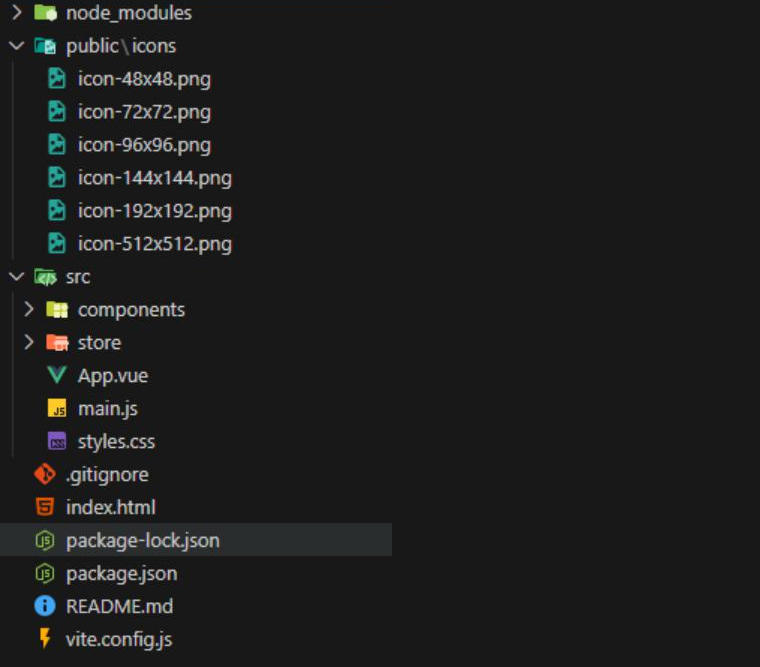
- Place your icons in the public/icons/ folder.
- Recommended sizes: 48×48, 72×72, 96×96, 144×144, 192×192, 512×512.
- PNG format is preferred; transparency is optional.
Step 4: Build the project
Run the production build to generate the PWA assets:
npm run build |
Or
yarn build |
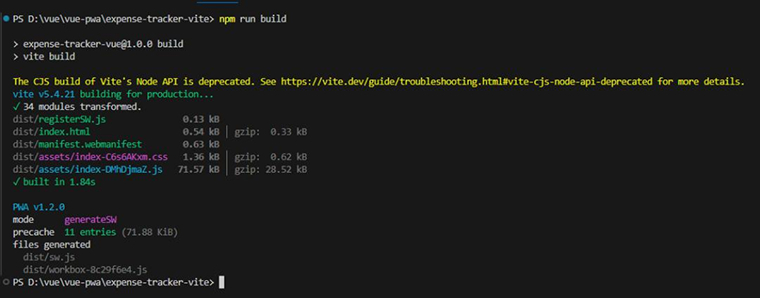
This will generate a dist folder containing:
- index.html
- manifest.webmanifest
- Service worker files (sw.js or vite-plugin-pwa generated files)
- Cached assets
Step 5: Now serve your dist folder using http-server
npx http-server dist |
Access your application using your localhost
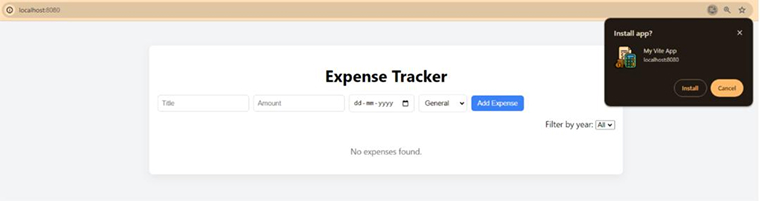
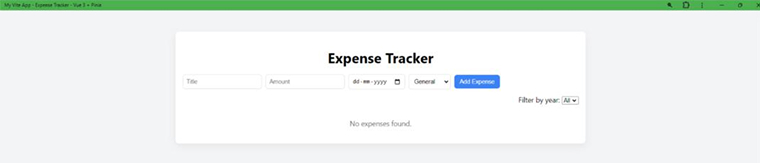
To uninstall a PWA, open the app on your device, then either long-press the app icon (mobile) or right-click it (desktop) and select “Uninstall” or “Remove from device”. This action removes the app and clears its cached data from the device.
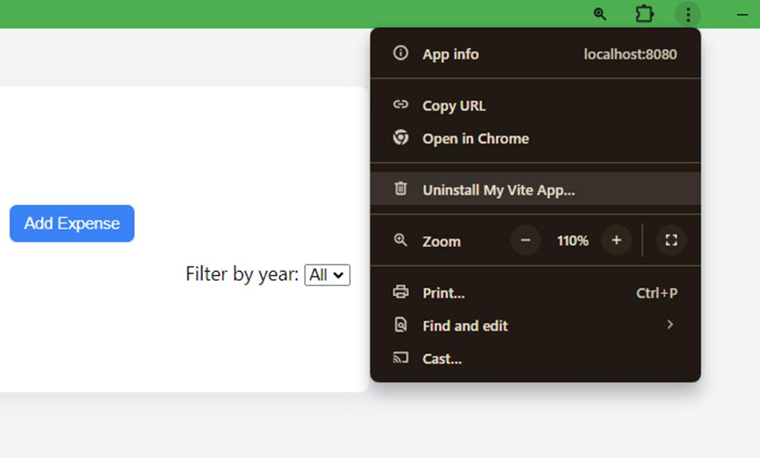
You can make your existing Vue or Vite web app perform or behave like a native app, allow offline access, and provide installable icons by adding PWA support to it. Users can effortlessly install, use, and uninstall the app by configuring the manifest.json or VitePWA plugin and providing proper icons. Ensure that all PWA features work up to expectations through testing.
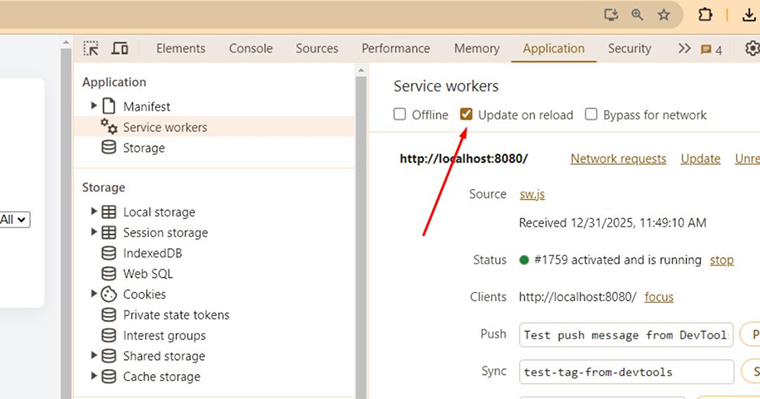
You can install the PWAs on smartphones and tablets, and they will function the same as on a desktop. During development, service workers may cache assets aggressively, so keep the browser’s Network tab open with “Disable Cache” enabled.
Avoid caching issues in Chrome by doing any one of the following:
- Use Application > Service Workers > Update on reload
- Manually refresh/unregister the service worker if needed
Although the PWA plugin comes with a default service worker, you might have to customize it to fulfill the specific requirements of your application.
5. Customizing Our PWA in Vue
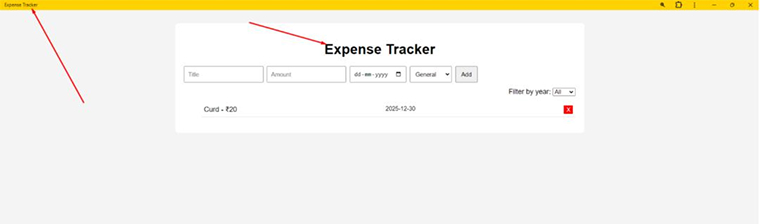
With the PWA plugin, you get useful default settings, but if you can, customize your app’s name, theme color, and icons if needed. Override the plugin’s defaults by defining the PWA settings in vue.config.js or an equivalent configuration file. Once the configuration is updated and the project is rebuilt, changes will be reflected once you reinstall the PWA.
module.exports = { pwa: { name: "Expense Tracker", themeColor: "#ffd100" } }; |
6. Adding Custom PWA Icons
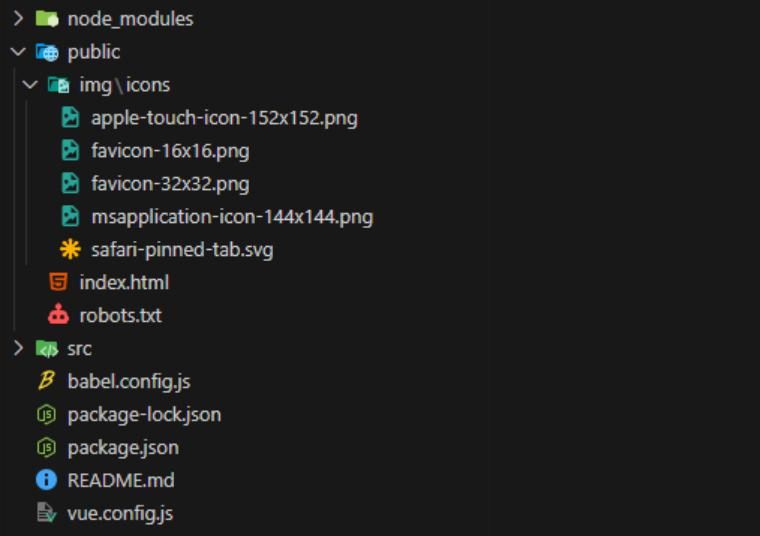
The Vue PWA plugin automatically creates all the necessary app icons in public/img/icons, following specific naming conventions and sizes required by different browsers and operating systems. These icons are used as favicons, app launcher icons, and system UI indicators.
Go to the PWA section of vue.config.js for the configuration necessary to customize the icons. Icon files are essential to make the PWA installable. So, they must be named correctly and stored in the expected location. Replacing the generated icon files with your own images while keeping the dimensions and filenames the same is the simplest way to customize them.
All you need is a single high-resolution (512×512) source image, and then tools like realfavicongenerator.net can use it to generate all the required icon sizes. Review the dist/manifest.json once you build the project to confirm that icon paths and settings are implemented correctly.
module.exports = { publicPath: "./", pwa: { name: "Expense Tracker", themeColor: "#ffd100", icons: { favicon32: "img/icons/icon-32x32.png", favicon16: "img/icons/icon-16x16.png", appleTouchIcon: "img/icons/apple-touch-icon-152x152.png", maskIcon: "img/icons/safari-pinned-tab.svg", msTileImage: "img/icons/msapplication-icon-144x144.png", }, }, }; |
7. Other PWA Options with Vue
The Vue plugin offers more configuration options for further customization. To know your options, access the complete list in the official PWA plugin documentation. Unless you have any specific app requirements, it is highly recommended not to make any changes and trust the default settings. If you need to use advanced options, then the documentation explains how to use them.
8. Prompting Users to Install a PWA
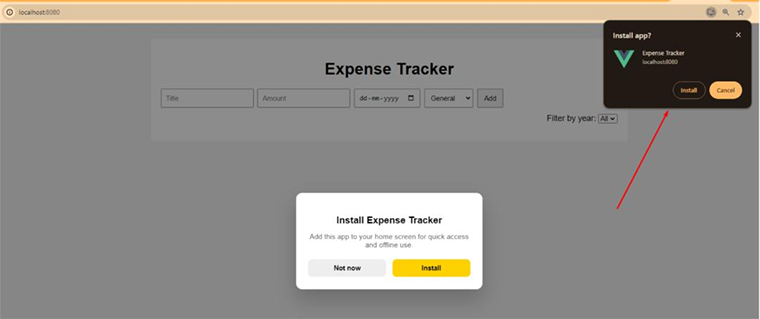
Although browsers allow the installation of PWA, the install option is not very visible. Providing a custom in-app prompt can help encourage installation. Browsers control when installation is allowed, so this is done by listening for the beforeinstallprompt event. This event prevents the default browser prompt and shows your own UI instead.
In Vue, this logic can be wrapped into a reusable component that:
- Listens for the beforeinstallprompt event
- Stores the event for later use
- Displays a custom “Install” prompt to the user
- Triggers the browser’s install flow when the user clicks Install
If the user dismisses the prompt once, then you can’t force it to appear again because the actual installation is managed by the web browser. You can track whether the user accepted or declined, but the availability and timing are controlled by the browser.
Create a file called PWAPrompt.vue.
<template> <div v-if="show" class="pwa-overlay"> <div class="pwa-dialog"> <h3>Install Expense Tracker</h3> <p> Add this app to your home screen for quick access and offline use. </p> <div class="actions"> <button class="secondary" @click="dismiss"> Not now </button> <button class="primary" @click="install"> Install </button> </div> </div> </div> </template> <script> export default { data() { return { show: false, installEvent: null }; }, mounted() { window.addEventListener("beforeinstallprompt", (e) => { e.preventDefault(); this.installEvent = e; this.show = true; }); }, methods: { dismiss() { this.show = false; }, install() { if (!this.installEvent) return; this.installEvent.prompt(); this.installEvent.userChoice.then(() => { this.show = false; this.installEvent = null; }); } } }; </script> <style scoped> .pwa-overlay { position: fixed; inset: 0; background: rgba(0, 0, 0, 0.45); display: flex; align-items: center; justify-content: center; z-index: 9999; } .pwa-dialog { background: #ffffff; border-radius: 12px; padding: 24px; max-width: 320px; width: 90%; box-shadow: 0 20px 40px rgba(0, 0, 0, 0.2); text-align: center; } .pwa-dialog h3 { margin-bottom: 8px; } .pwa-dialog p { font-size: 14px; color: #555; margin-bottom: 20px; } .actions { display: flex; justify-content: space-between; gap: 12px; } button { flex: 1; padding: 10px; border-radius: 8px; border: none; font-weight: 600; cursor: pointer; } button.primary { background: #ffd100; color: #000; } button.secondary { background: #eee; } </style> |
Add this component in App.vue file
<template> <PWAPrompt /> <div class="container"> <h1>Expense Tracker</h1> <ExpenseForm /> <div class="filter"> <label> Filter by year: <select v-model="year"> <option value="">All</option> <option v-for="y in years" :key="y" :value="y">{{ y }}</option> </select> </label> </div> <ExpenseList :year="year" /> </div> </template> |
Conclusion
Building a progressive web app with Vue or transforming an existing Vue app into a PWA offers a wide range of benefits, such as offline functionality, improved performance, higher engagement rates, and an enhanced user experience. Vue’s reactivity system, when used with PWA’s caching features, helps gain data access in real-time.
Moreover, the use of service workers and manifest files makes your app resilient to varying network conditions. In short, even with poor or no internet connectivity, users can seamlessly work with the application. More importantly, although it’s a web app, developing a PWA with Vue delivers native-like performance and experience across multiple platforms.

Parind Shah is responsible for frontend innovations at TatvaSoft. He brings profound domain experience and a strategic mindset to deliver exceptional user experience. He is always looking to gain and expand his skill set.



Comments
Leave a message...