

With the increasing adoption of digital transformation by different industries, the technologies they rely on must evolve to keep pace with changing market demands. Many .NET development companies that built their applications on the traditional .NET Framework are now exploring migration to .NET Core to take advantage of a more modern, flexible, and future-ready platform. With its various outstanding capabilities and ongoing support from Microsoft, .NET Core has become a preferred choice for organizations looking to modernize their software systems.
Migrating from .NET Framework to .NET Core is not just a technical upgrade. It is an opportunity to improve application scalability, reduce maintenance challenges, and prepare systems for future innovation. However, the transition requires careful planning, evaluation of existing applications, and a clear migration strategy to avoid disruptions and maximize benefits.
In this guide, we will explore the key aspects of .NET Framework to .NET Core migration, including its benefits, challenges, and the best practices for a successful modernization journey.
Overview of .NET Framework & .NET Core
The .NET Framework is a Microsoft-developed software development platform widely used for developing Windows-based applications for many years. It provides developers with a structured environment to create desktop programs, web applications, business solutions, and various enterprise systems. One of its biggest strengths is the Common Language Runtime (CLR), which manages application execution and improves reliability through features such as memory management and error handling. The framework also includes an extensive collection of reusable libraries called FCL (Framework Class Library) that simplify development tasks.
.NET Core was introduced to overcome the limitations of the .NET Framework. Unlike earlier Microsoft development frameworks that were primarily for Windows, .NET Core allows applications to run on multiple operating systems, including Linux and macOS. Its lightweight design helps developers build efficient software while using only the components required for a project. This versatile platform is well-suited for modern development approaches such as cloud computing, microservices, and container-based deployments.
Difference Between .NET Framework and .NET Core
Before starting the migration, first assess whether you actually need to migrate at this time. Evaluate your application, business requirements, and technical constraints to determine whether migration is necessary. The decision to migrate from .NET to .NET Core must not be just because of its increasing adoption, but for the accomplishment of your organization’s goals.
Therefore, first of all, get complete clarity on what differentiates .NET Core from the .NET Framework from the table given below:
| Parameters | .NET Framework | .NET Core |
|---|---|---|
| Platform Compatability | .NET is exclusively for the Windows platform. | It is a cross-platform framework working on the “write once, run anywhere ” approach. |
| Ownership | .NET began as a proprietary software framework. | It is an open-source framework under the MIT license. |
| Versioning | The .NET Framework runs on a shared runtime, leading to version conflicts when multiple applications depend on different framework versions. | It supports server-side versioning, resulting in multiple .NET Core versions existing on the same machine. |
| Configurations | v4.6.1+ implements .NET Standard 2.0 | v2.0 implements .NET Standard 2.0 |
| Microservices | Supports building microservices to some extent using Windows Containers and ASP.NET Web API. | Specifically designed for microservices development. It supports cloud native deployments and integrates easily with containerized platforms like Docker and Kubernetes for scalable, distributed systems. |
| Application development | Web and desktop applications only for Windows. | Mobile apps, desktop apps, SPAs, cloud-native apps, IoT, and AI/ML solutions. |
| Mobile development | It’s a Windows-only framework, so no support for mobile app development. | The .NET MAUI platform helps build cross-platform mobile applications. |
| Language Support | It completely supports C# and VB.NET. | .NET Core natively supports C#, F#, and VB.NET. |
| Performance | The monolithic architecture, dependency on Windows, and older runtime optimizations limit .NET’s performance. | The lightweight modular architecture, Just-In-Time (JIT) compiler, stack allocations, and zero-allocation APIs offer high performance. |
| CLI-based tools | CLI support is limited and not designed for modern cloud workflows. Development mainly relies on Visual Studio and Windows-specific tools. | It includes the powerful .NET CLI, which supports creating, building, testing, publishing, and managing applications from the command line across Windows, Linux, and macOS. |
| Security level | .NET provides established security features but depends on older Windows-centric security models. | .NET Core is designed with modern security practices, regular updates, improved cryptography, and container security. |
Why Migrate From .NET Framework to .NET Core?
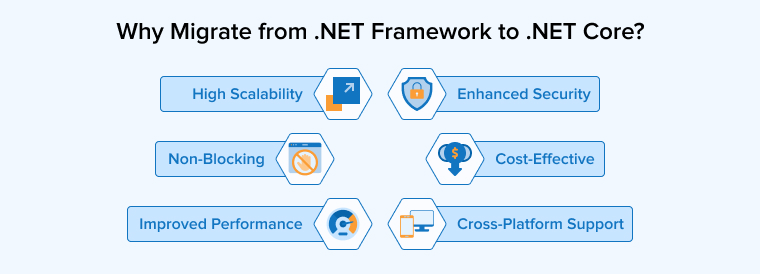
The widespread migration from .NET to .NET Core is mainly because of the following five reasons:
1. Cross-Platform Support
Moreover, a major advantage of .NET Core is its ability to run on different operating systems from a single codebase. Applications can be developed once and deployed across Windows, Linux, and macOS, reducing the effort needed to maintain separate platform-specific versions. This flexibility simplifies development, lowers maintenance costs, and provides more deployment choices. Thus, it helps organizations to reach users across multiple operating systems more efficiently.
2. High Scalability
.NET Core is built to support applications that can scale as demand increases. Additionally, its efficient runtime uses system resources wisely, allowing applications to process more requests without requiring excessive hardware. As a result, it is well-suited for cloud platforms, where services often need to scale across multiple servers. Furthermore, organizations can expand capacity more easily and manage high user traffic with less complexity.
3. Cost-Effective
Moving from older .NET technologies to .NET Core can help organizations reduce both development and operational expenses. Maintaining legacy applications often requires specialized skills that are harder to find and more expensive to hire. In contrast, .NET Core provides a more efficient and stable platform that simplifies application management and ongoing support. Additionally, its open-source model eliminates licensing concerns, while improved deployment options can help reduce infrastructure and hosting costs.
4. Non-Blocking
.NET Core provides strong support for asynchronous programming, which keeps applications responsive while handling multiple operations at the same time. Instead of waiting for one task to finish before starting another, the application can continue processing other requests efficiently. This approach improves overall performance, especially in systems that frequently communicate with databases, files, or external services. By using resources more effectively, applications can manage higher workloads without unnecessary delays, providing faster response times and smoother interactions to users.
5. Enhanced Security
.NET Core places a strong emphasis on application security and includes features that help developers build safer systems. It supports current encryption methods, helping organizations protect confidential information during storage and transmission. Built-in security capabilities such as user authentication, access control, and data protection reduce the risk of unauthorized access. The platform also addresses common web security threats, helping applications withstand attacks more effectively. Regular updates and ongoing improvements further strengthen the security cover over time.
6. Improved Performance
.NET Core delivers strong performance while using system resources efficiently. Its streamlined architecture helps applications respond more quickly, which makes it well-suited for high-traffic websites, services, and cloud-based solutions. Faster execution and lower resource consumption can improve user experience and reduce infrastructure expenses. Features such as efficient resource management, optimized runtime behavior, and support for distributed systems provide consistent performance under varying workloads.
What Are the Migration Strategies to Migrate From .NET to .NET Core?
There are primarily two strategies involved in migrating from .NET to .NET Core:
Incremental Migration (Strangler Fig Pattern)
Modern .NET migrations often use an incremental method where the old .NET Framework system and a new ASP.NET Core application run simultaneously. A reverse proxy, such as YARP (Yet Another Reverse Proxy), is placed in front to control traffic and slowly shift requests from the old system to the new one.
This gradual change usually follows the Strangler Fig approach, where new features are developed in the modern application while older parts are replaced step by step. It allows teams to keep the application live, reduce risk, and handle complex dependencies safely. Over a period of time, the legacy system is fully replaced without a sudden overhaul.
This approach is best suited when:
- The application must remain in production throughout the migration
- The codebase is large and cannot be rewritten or transferred in one go
- Dependencies are complex or not fully inventoried
- Risk tolerance is low, and a rollback path must always exist
In-Place (Full) Migration (Big Bang Migration)
An in-place migration means replacing an existing .NET Framework application with a modern version at a time. Instead of running the old and new systems together, teams upgrade the entire codebase, including APIs, configurations, and dependencies, and then rebuild it for a newer .NET version such as .NET Core. Developers often call this approach a “big-bang” change because they migrate everything at once. It requires careful planning and demands thorough testing before release.
This approach is best suited when:
- The application is small or medium in size
- System.Web and other incompatible dependencies are minimal
- A complete dependency inventory has been done
- The team can sustain the required system downtime for the migration to take place
How to Migrate From .NET to .NET Core?
Let’s now discuss the steps involved in migrating from .NET to .NET Core:
1. Pre-Migration Checklist
Go through the following instructions before writing the .NET to .NET Core migration code to prevent issues in the later stages.
- Run the .NET Upgrade Assistant in analyze mode and review the compatibility report
- Inventory every NuGet package and check each for a .NET 8 or .NET Standard 2.0+ compatible version
- List all System.Web references across the solution and map each to its ASP.NET Core equivalent
- Identify any WebForms, WCF server-side, AppDomain, LINQ to SQL, or COM usage
- Confirm all third-party library vendors have or are actively working on modern .NET support
- Ensure that at least a minimal automated test suite exists for critical business paths
- Define the migration scope and order, such as migrate libraries first, and UI last
- Decide on the migration strategy (incremental vs. in-place) and document the rollback plan
- Confirm that the CI/CD pipeline supports the target .NET SDK version.
- Decide on and document the deployment target (IIS / Linux / Docker / Kubernetes)
There are two ways you can choose for migration from .NET to .NET Core:
2. Automated Migration via .NET Upgrade Assistant
The .NET Upgrade Assistant provides an automated way to carry out the migration process, as it includes the necessary tools. Additionally, this CLI tool analyzes your existing solution, identifies incompatibilities, and performs as much of the upgrade work as possible automatically.
What Does the Upgrade Assistant Do?
- Upgrades the project file (.csproj) to the SDK-style format
- Identifies NuGet packages that are incompatible with modern .NET and suggests replacements
- Flags unsupported APIs and namespace changes in the source code
- Produces a compatibility report with a list of blockers and recommended actions
- Partially rewrites code where straightforward equivalents exist (e.g., configuration, routing)
When to Use it?
- As a first-pass analysis tool before starting any manual work
- For smaller applications or class libraries where the API surface is clean
- To automate the mechanical parts of a larger migration (project file, NuGet updates) before doing the deeper refactoring manually
How to Run It?
Install via: 📄 dotnet tool (global)
# Install the Upgrade Assistant globally dotnet tool install -g upgrade-assistant # Analyse the solution without making changes upgrade-assistant analyze MyLegacyApp.sln # Run the interactive upgrade wizard upgrade-assistant upgrade MyLegacyApp.sln |
The analyze command generates a detailed report that lists incompatible packages, unsupported APIs, and project file issues. Therefore, you should review the report thoroughly before starting the migration, whether you choose a manual or automated approach. Next, the upgrade command processes each project individually, allowing you to accept or skip specific changes.
Limitations to Be Aware Of
- WebForms pages (.aspx / .ascx) are not migrated; they require manual redesign
- Custom HTTP Modules and Handlers need manual conversion to middleware
- WCF server-side services are flagged but not converted
- Business logic tightly coupled to the system.Web.HttpContext requires manual refactoring
- The tool cannot resolve library incompatibilities where no modern equivalent exists
3. Manual Migration
Manual migration requires developers to move an application to .NET Core step by step, making necessary code changes along the way. Because newer .NET versions differ significantly from the .NET Framework, you must update or redesign many components. This approach gives you greater control and works well for complex applications that require reliability and careful validation.
These steps follow a logical order, with each step building on the previous one. We explicitly identify the file whenever a change primarily affects a specific file.
3.1 Choose the Target .NET Version
Select an LTS (Long-Term Support) release as your migration target. This approach provides three years of support, making LTS versions a safer choice for business applications.
As of 2026, the recommended targets are:
- .NET 8: Current LTS (supported until November 2026)
- .NET 10: Upcoming LTS (in preview, releasing late 2025/2026)
Avoid non-LTS releases (e.g., .NET 7, .NET 9) for production migrations unless you have a clear upgrade flow in place. They receive only 18 months of support.
3.2 Prepare the Development Environment
Before any code changes, make sure all developers and CI/CD environments have the correct .NET SDK installed and configured.
- Download and install the .NET SDK for your chosen target version from dotnet.microsoft.com
- Verify the SDK is available by running: dotnet –version
- Update Visual Studio to a version that supports your target runtime (Visual Studio 2022 for .NET 8+)
- Update CI/CD pipelines (Azure DevOps, GitHub Actions, Jenkins) to include the correct SDK version
# Verify installation dotnet --version # Expected output: 8.x.x # List all installed SDKs dotnet --list-sdks |
Run dotnet –list-sdks to confirm all installed SDKs. For continuous integration (CI), pin the exact SDK version using a global.json file at the root of your solution to prevent version drift across environments.
File to add at solution root: 📄 global.json
{ "sdk": { "version": "8.0.100", "rollForward": "latestMinor" } } |
3.3 Define the Migration Scope
Before touching any code, clearly define what will be migrated and in what order. Attempting to migrate everything simultaneously is the most common reason migrations fail.
A practical approach is to migrate in layers, starting from the least dependent components:
- Shared utilities and class libraries first, as these have the fewest dependencies
- Data access layer and repository projects next
- API or service layer after the data layer is stable
- Migrate the web/UI layer last, as it contains most of the System.Web incompatibilities.
For large solutions, migrate one project at a time. Use multi-targeting on shared libraries (supporting both net472 and net8.0 simultaneously), so unconverted projects can still consume them during the transition.
3.4 Replace the Application Entry Point and Startup
ASP.NET Framework bootstrapped applications through Global.asax for MVC/Web API and web.config for IIS settings. In contrast, modern .NET consolidates startup logic into a single Program.cs file using the minimal hosting model introduced in .NET 6.
What needs to move from Global.asax into Program.cs:
- Service registrations (dependency injection wiring)
- Middleware pipeline configuration (replaces HTTP Modules)
- Route definitions (replaces RouteConfig.cs)
- Filter registrations (replaces FilterConfig.cs)
File removed: 📄 Global.asax / Global.asax.cs
File removed: 📄 App_Start\RouteConfig.cs / FilterConfig.cs / WebApiConfig.cs
File created: 📄 Program.cs
Modern .NET still uses the web.config file, but it limits its role to IIS-specific hosting settings, such as the ASP.NET Core Module handler. All application configuration moves to appsettings.json.
3.5 Migrate Configuration (web.config → appsettings.json)
The ConfigurationManager class and web.config AppSettings/ConnectionStrings sections are not available in modern .NET. Configuration is handled through a layered JSON-based system with environment-specific overrides and strongly-typed binding.
How the configuration system maps across:
| Old (.NET Framework) | New (Modern .NET) |
|---|---|
| web.config <appSettings> | appsettings.json (key-value or nested JSON) |
| web.config <connectionStrings> | appsettings.json ConnectionStrings section |
| web.config transforms (.debug) | appsettings.Development.json / appsettings.Production.json |
| ConfigurationManager.AppSettings[“Key”] | builder.Configuration[“Key”] or IOptions<T> |
| ConfigurationManager.ConnectionStrings | builder.Configuration.GetConnectionString(“Name” |
File removed: 📄 web.config (AppSettings / ConnectionStrings sections)
Files created: 📄 appsettings.json / appsettings.{Environment}.json
Example appsettings.json structure:
{ "ConnectionStrings": { "Default": "Server=.;Database=MyDb;Trusted_Connection=True;" }, "AppSettings": { "SmtpHost": "smtp.company.com", "MaxRetries": 3, "FeatureFlags": { "EnableNewDashboard": true } } } |
Never store secrets such as passwords, API keys, or connection strings with credentials in appsettings.json. Instead, use the .NET User Secrets tool (dotnet user-secrets) for local development and a secrets manager such as Azure Key Vault or AWS Secrets Manager in production.
3.6 Port and Refactor Application Code
Next, move the controllers, services, models, and business logic into the new project, then resolve any remaining compilation errors after migrating the startup and configuration.
The most common code-level changes required are as follows:
- Replace System.Web.HttpContext with Microsoft.AspNetCore.Http.HttpContext
- Replace System.Web.MVC with Microsoft.AspNetCore.MVC (controllers, attributes, and action results are similar but not identical)
- Replace WebApi 2 controllers (ApiController) with ASP.NET Core controllers (ControllerBase)
- Replace HttpResponseMessage with IActionResult or typed ActionResult<T>
- Replace ConfigurationManager calls with injected IConfiguration
- Remove all using System.Web statements and replace with ASP.NET Core equivalents
Files affected: 📄 Controllers\*.cs / Services\*.cs / Models\*.cs
Use the compiler as your guide. Build the new project with dotnet build after each file is ported and fix errors incrementally. Do not attempt to port everything and then build because this makes it very hard to trace the source of errors.
3.7 Migrate the Data Access Layer
If your application uses Entity Framework 6 (EF6) or LINQ to SQL, this step replaces it with Entity Framework Core. EF Core is a complete rewrite of EF6, and most LINQ query patterns carry over cleanly, but the configuration API and some behaviours differ.
Key EF Core differences to plan for:
- DbContext is configured through DbContextOptions, which is injected through the constructor, eliminating the need for parameterless constructors or connection string names in App.config.
- Lazy loading is not the default feature in EF Core but an opt-in feature. You need to configure it explicitly or use .Include() for eager loading.
- EF Core migrations are independent of EF6 migrations. After porting the DbContext, generate a new initial migration.
- Some EF6 features (e.g., ObjectContext, EntityObject) do not exist in EF Core
Files affected: 📄 Data\AppDbContext.cs / *.csproj / Program.cs
EF Core DbContext registration in Program.cs:
// Program.cs builder.Services.AddDbContext<AppDbContext>(options => options.UseSqlServer( builder.Configuration.GetConnectionString("Default"))); // After setup, generate the initial migration: // dotnet ef migrations add InitialCreate // dotnet ef database update |
If your app uses raw ADO.NET (SqlConnection, SqlCommand), it still works in modern .NET without changes — Dapper and ADO.NET are fully supported. Only EF6 and LINQ to SQL require replacement
3.8 Update NuGet Packages and Third-Party Libraries
Every package referenced by your application must be checked for modern .NET compatibility. Many older packages targeting only the .NET Framework will not compile and must be replaced.
The process for each package:
- Open NuGet Package Manager in Visual Studio or check the package page on nuget.org
- Look for a version that targets net6.0, net8.0, or .NET Standard 2.0 / 2.1
- If a compatible version exists, update to it
- If no compatible version exists, find a maintained alternative (see table below)
- If no alternative exists, isolate the dependency behind an interface and plan to replace it
| Common Old Package | Modern .NET Replacement |
|---|---|
| Unity (DI container) | Microsoft.Extensions.DependencyInjection (built-in) |
| log4net / NLog (old versions) | Microsoft.Extensions.Logging + Serilog or NLog (updated) |
| Newtonsoft.Json | System.Text.Json (built-in) or Newtonsoft.Json v13+ |
| EntityFramework (EF6) | Microsoft.EntityFrameworkCore |
Files affected:📄 *.csproj / packages.config (removed in modern .NET)
3.9 Upgrade the Project File (.csproj)
The .csproj format changed significantly between .NET Framework and modern .NET. The new SDK-style format is dramatically simpler and replaces hundreds of lines of XML with a few essential properties.
Key differences to be aware of:
- The old format requires explicit listing of every .cs file, whereas the new format includes all files in the folder automatically
- Package references replace the packages.config file
- The TargetFramework property replaces TargetFrameworkVersion
- The SDK attribute at the top of the file selects the right build toolchain
File being changed: 📄 .csproj
Old .NET Framework .csproj (simplified):
<Project ToolsVersion="15.0" xmlns="http://schemas.microsoft.com/developer/msbuild/2003"> <PropertyGroup> <TargetFrameworkVersion>v4.7.2</TargetFrameworkVersion> <OutputType>Library</OutputType> </PropertyGroup> <ItemGroup> <Reference Include="System" /> <Reference Include="System.Web" /> </ItemGroup> <ItemGroup> <Compile Include="Controllers\HomeController.cs" /> <!-- every file listed explicitly... --> </ItemGroup> </Project> |
New SDK-style .csproj for modern .NET:
<Project Sdk="Microsoft.NET.Sdk.Web"> <PropertyGroup> <TargetFramework>net8.0</TargetFramework> <Nullable>enable</Nullable> <ImplicitUsings>enable</ImplicitUsings> </PropertyGroup> <ItemGroup> <PackageReference Include="Microsoft.EntityFrameworkCore.SqlServer" Version="8.0.0" /> </ItemGroup> </Project> <!-- For shared libraries targeting BOTH frameworks during incremental migration: --> <!-- <TargetFrameworks>net8.0;net472</TargetFrameworks> --> |
3.10 Set Up Automated Testing and Regression Validation
Testing is the safety process that makes migration reversible. Before deploying the migrated application to any shared environment, establish a baseline of automated tests that validate the most critical business paths.
Testing layers to cover:
- Unit tests: Validate individual services and business logic in isolation.
- Integration tests: Validate the full request pipeline using WebApplicationFactory (built into ASP.NET Core test infrastructure).
- End-to-end tests: Validate key user journeys through the application via a browser or HTTP client.
If automated tests do not exist before migration, write a minimal set targeting the highest-risk areas before transferring that code. This gives you a baseline to detect regressions after the port.
Files affected: 📄 *.Tests.csproj / appsettings.Test.json
ASP.NET Core provides WebApplicationFactory<TProgram> for in-process integration testing without a running server. This is significantly easier to set up than the older TestServer approach in .NET Framework.
3.11 Deploy the Migrated Application
Additionally, modern .NET supports a broader range of deployment targets. Choose the deployment model that best aligns with your infrastructure strategy.
| Deployment Target | Use Case | Notes |
|---|---|---|
| IIS (Windows) | Minimal ops change from Framework | Requires ASP.NET Core Module (ANCM) installed on IIS |
| Linux + Nginx + Kestrel | Cost-efficient, cloud VM hosting | Kestrel is the built-in web server; Nginx acts as reverse proxy |
| Docker Container | Portability and consistency | Use multi-stage Dockerfile; official MCR images available |
| Kubernetes | High-scale, orchestrated services | Use Helm charts; configure health checks and readiness probes |
| Azure App Service | Managed PaaS on Azure | Native support for .NET 8; simple deployment via ZIP or GitHub Actions |
Publish the application using the dotnet publish command:
# Framework-dependent (runtime must be installed on the target server) dotnet publish -c Release -o ./publish # Self-contained (bundles the runtime — no .NET required on the server) dotnet publish -c Release -r linux-x64 --self-contained true -o ./publish |
For Docker deployments, always use multi-stage builds, with one stage for building and publishing and a separate, smaller stage for the final runtime image. As a result, production images remain leaner and have a reduced attack surface.
What Are the Challenges When Migrating to .NET Core?
You’ll come across the following challenges while migrating from .NET to .NET Core:

1. Incompatible Libraries
Older applications often depend on libraries, packages, or components that may not work with the newer platform. Before migration begins, it is important to review all dependencies and determine whether they are supported, need updates, or must be replaced. In some cases, functionality provided by older libraries may require a different implementation approach in .NET Core. Identifying these issues early helps avoid unexpected delays and reduces migration risks. The .NET Portability Analyzer can also help teams to understand potential problems and plan appropriate solutions before development starts.
2. Code Refactoring
Moving an application from .NET Framework to .NET Core often requires significant code updates because some APIs, classes, and features behave differently or are no longer available. As a result, developers must review existing code and modify sections that are incompatible with the newer platform. Techniques such as dependency injection, asynchronous programming, and updated error-handling approaches can help modernize the application while preserving its core functionality.
3. API Changes
Since .NET Core has a different API design and does not fully match the older one, some existing code may need to be updated or redesigned. While many commonly used libraries now offer support for both environments, compatibility gaps can still arise with certain APIs. In such cases, developers can use Microsoft’s API Portability Analyzer (APA) to detect unsupported features and identify areas that need attention. This helps teams plan the migration process more effectively and reduce issues caused by differences between frameworks.
Final Thoughts
Migrating from .NET Framework to .NET Core is more than a technical upgrade is an opportunity to prepare applications for future business and technology demands. While the process may involve code changes, dependency reviews, and careful testing, the long-term advantages are much more significant. As a result, organizations can achieve better performance, greater flexibility, and access to modern .NET development practices that support evolving application needs.
FAQs
.NET Core migration delivers better cross-platform support, superior performance, lower infrastructure costs, and better cloud and container support to businesses.
No, not every .NET Framework application can be directly migrated to .NET Core because technologies deeply tied to Windows, like WCF, Web Forms, and Workflow Foundation, are unsupported.
A .NET migration project can take three to twelve months, depending on application size, complexity, legacy framework dependencies, and desired architectural changes.
Yes, .NET Core is highly suitable for cloud-native apps, offering great performance, cross-platform support, and built-in container optimization capabilities.
Migrating from the legacy .NET Framework to .NET Core enhances an application’s underlying security posture through regular security updates, better authentication support, and enhanced encryption capabilities.

Rakesh Patel is a technology expert working at TatvaSoft. He is looking after .NET development projects and also work along side with business analyst team. He developed his passion of writing while working and writes whenever he got the time.



Comments
Leave a message...