


Data tables are complex by nature, especially if you are working with a large dataset. The real challenge lies in presenting this data interactively on a customized view of your Vue application. With the increasing use of online applications, the need for dynamic data delivery has grown exponentially.
Developers, especially those working in a VueJS development company, use Vue DataTables to address a wide variety of data presentation requirements. These tools allow for easy management and engaging visualization of large datasets on a single display.
This article explores the concept of Vue DataTables and provides a guide to transform your data displays to deliver high app performance and enhanced user experience.
1. Top 6 Vue DataTables to Use
Vue offers several tools, including Element UI and Vue Handsontable, to address a wide range of requirements for dynamic data display and data grids across various software solutions.
1.1 Vuetify Data Table
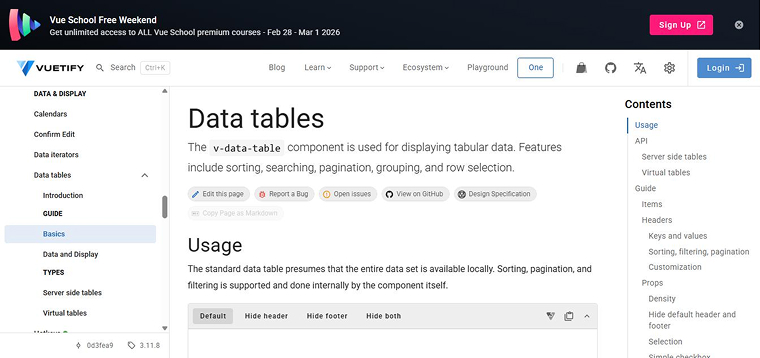
Vuetify DataTable is specially designed to provide a clean and unified appearance for your Vue projects. It simplifies data management with built-in features such as row selection, pagination, filtering, and sorting.
Its advanced customization options make Vuetify unique, allowing developers to use slots and attributes to change colors and add custom headers or even use row expansion to make it more engaging.
Vuetify follows Google’s design standards, so it looks great across every screen size. Detailed documentation and strong community support make Vuetify an ideal choice for creating simple apps and complex dashboards.
1.2 Element UI DataTable
Element UI provides a data table component for Vue 2.0 that emphasizes speed and ease of use. Designed with a simple API, it helps developers to build and run the table with a minimal setup. This DataTable takes care of the basics, such as filtering and sorting, but also provides advanced features like row editing and custom layouts.
Element UI DataTable prioritizes performance. It offers optimization to ensure smooth scrolling and a responsive UI, especially when handling large datasets. Traits like high efficiency and reliability make Element UI DataTable a right fit for real-time updates.
1.3 Syncfusion Data Grid
Syncfusion offers an enterprise-grade data grid capable of handling large datasets without performance degradation. It includes features such as inline CRUD (Create, Read, Update, Delete) operations, stacked headers, and the ability to export data directly to Excel, PDF, or CSV formats.
It is mobile-friendly and supports WAI-ARIA for high accessibility. Syncfusion is suitable for complex SPAs because it binds easily with different local and remote data sources via JSON. It also offers specialized tools like context menus that appear when you right-click a cell.
1.4 ag-Grid
The “ag” in the ag-Grid stands for agnostic, referring to its capability to work across different JavaScript frameworks. This DataTable focuses on performance, which makes it the right fit for complex projects with large datasets. Its row virtualization feature ensures high speed.
You need to obtain a paid license to use this tool and its advanced features, like drag and drop rows or live updates. You can test out its capabilities with a free trial. The ag-Grid is easy to customize, and it offers Excel-like functionalities such as quick filters, column pinning, and range selection. It also supports internationalization, making it easy to use in multiple languages.
1.5 Bryntum Grid
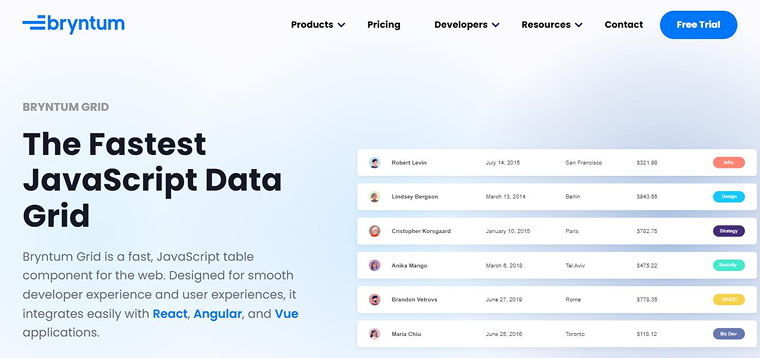
Bryntum Grid is an enterprise-grade solution that prioritizes frames per second and rendering speed. This Vue tool offers features such as sorting, paging, locked columns, and drag and drop reordering.
Although Bryntum is entirely based on JavaScript, it includes a dedicated Vue wrapper to ensure seamless integration. If you are working on a project that demands a high-performance user interface and may require future expansion, Bryntum is the better choice. It also allows you to access and use task-specific tools or components through different individual licenses.
1.6 Vue Handsontable
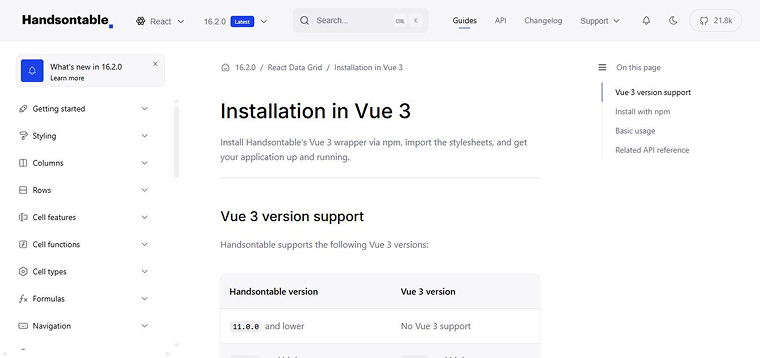
Vue Handsontable is the perfect tool if you want your web app to feel exactly like Excel or Google Sheets. It offers wrappers for both Vue 2 and Vue 3, delivering a user experience familiar to spreadsheet users.
With Vue Handsontable, users can directly edit the data within cells. Moreover, developers can implement features such as freezing rows or resizing columns. The tool supports seamless integrations with various data sources and provides powerful context menus for extra control. Although there is a paid plan to use this tool, it is available for free for personal projects and testing.
2. Getting Started with DataTables in Vue
Vue offers a robust library named DataTables to create interactive HTML tables. This library includes features like searching and filtering, Ajax data loading, pagination, sorting, and extensions such as select, responsive, buttons, etc.
Vue integrates DataTables cleanly into its reactivity system using datatables.net-vue3 package, an official Vue 3 wrapper.
Prerequisites
Before we get started, make sure you have:
- Node.js ≥ 16
- npm or yarn
- Basic knowledge of Vue 3 and JavaScript
Verify installation:
- node-v
- Npm–v

Step 1: Create a New Vue 3 Project Using Vite
Run the following command:
npm create vite@latest vue-datatables -- --template vue |
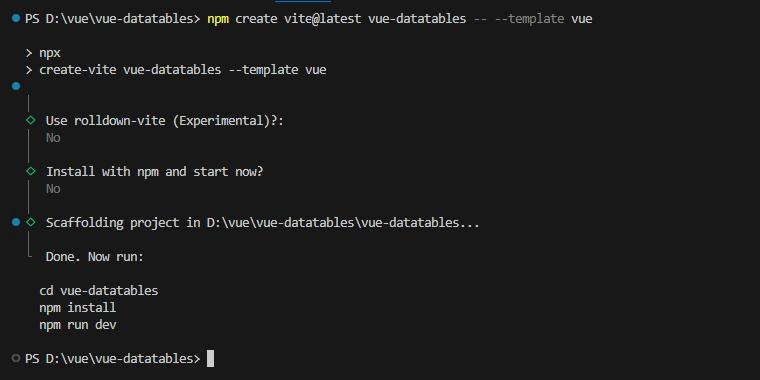
Navigate to the project:
-
cd vue-datatables -
npm install
-
npm run dev
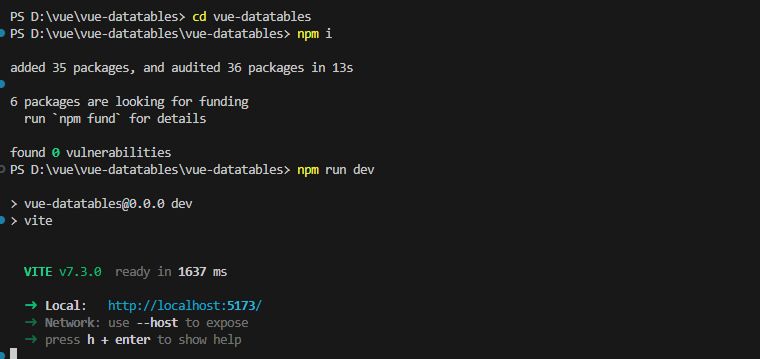
Your Vue 3 + Vite project is now running.
Step 2: Install DataTables Packages
Install Required Packages
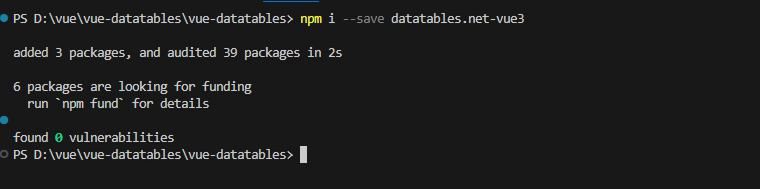
- npm:
npm install --save datatables.net-vue3
- yarn:
yarn add datatables.net-vue3
Install Styling (Choose One):
1. Bootstrap 5 (recommended)
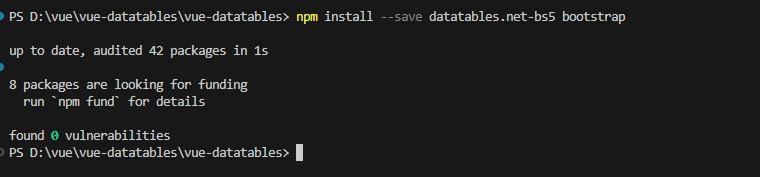
- npm:
npm install --save datatables.net-bs5 bootstrap
- yarn:
yarn add datatables.net-bs5 bootstrap
2. Vanilla CSS
- npm:
npm install --save datatables.net-dt
- yarn:
yarn add datatables.net-dt
Step 3: Configure DataTables in Vue
Update main.js
import { createApp } from "vue"; import "./style.css"; import App from "./App.vue"; import DataTable from "datatables.net-vue3"; import DataTablesCore from "datatables.net-bs5"; import "bootstrap/dist/css/bootstrap.min.css"; import "datatables.net-bs5/css/dataTables.bootstrap5.min.css"; DataTable.use(DataTablesCore); createApp(App).component("DataTable", DataTable).mount("#app"); |
Code Explanation:
The above code uses the updated main.js file to integrate the DataTables plugin into a Vue 3 app. The file imports the DataTables Vue wrapper and connects it with the Bootstrap-compatible DataTables core, ensuring seamless functionality and a consistent user interface.
Developers can use DataTables anywhere in the app without repeated imports by registering the DataTable component globally. This improves code maintainability. Adding Bootstrap and DataTables CSS ensures a responsive design and polished table layout across all views. This setup ensures that table management in Vue remains simplified, maintains visual consistency with Bootstrap, and keeps the app structure clean and efficient.
Step 4: Basic DataTable Component
Create a component:
Src/components/UserTable.vue
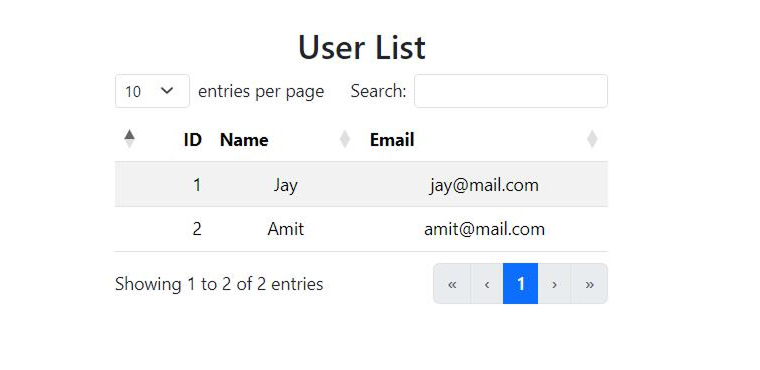
<script setup> import { ref } from 'vue' const columns = [ { title: 'ID', data: 'id' }, { title: 'Name', data: 'name' }, { title: 'Email', data: 'email' } ] const users = ref([ { id: 1, name: 'Jay', email: 'jay@mail.com' }, { id: 2, name: 'Amit', email: 'amit@mail.com' } ]) </script> <template> <DataTable :data="users" :columns="columns" class="table table-striped" /> </template> |
Step 5: Use Component in App.vue
<script setup> import UserTable from './components/UserTable.vue'; </script> <template> <div class="container mt-4"> <h2>User List</h2> <UserTable /> </div> </template> |
Output:
3. Ajax Data Loading in DataTables (Vue 3)
In this section, we will explore the concept of Ajax data loading and explain why you should use it in Vue DataTables. It also offers a step-by-step guide for implementing Ajax data loading in DataTables.
3.1 What is Ajax Data Loading?
Instead of embedding all the data directly into the Vue component, DataTables uses Ajax data loading to fetch data asynchronously from the API. So, instead of running
const users = ref([...]) |
Internally, DataTables uses XMLHttpRequest/Fetch to automatically fetch the data from the remote endpoint
3.2 Why Use Ajax in DataTables?
It is recommended that you use Ajax loading for the following instances:
- When the dataset is large
- If the data changes frequently
- Backend controls pagination & filtering
- You want a faster initial page load
- You want server-side processing
3.3 Basic Ajax Data Loading Example
Vue 3 + DataTables Ajax Example
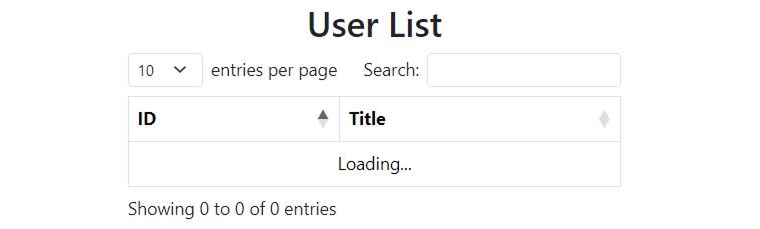
<script setup> const columns = [ { title: 'ID', data: 'id' }, { title: 'Title', data: 'title' } ] const options = { ajax: { url: "https://jsonplaceholder.typicode.com/posts", dataSrc: "" }, columns } </script> <template> <DataTable :options="options" class="table table-bordered" /> </template> |
Output:
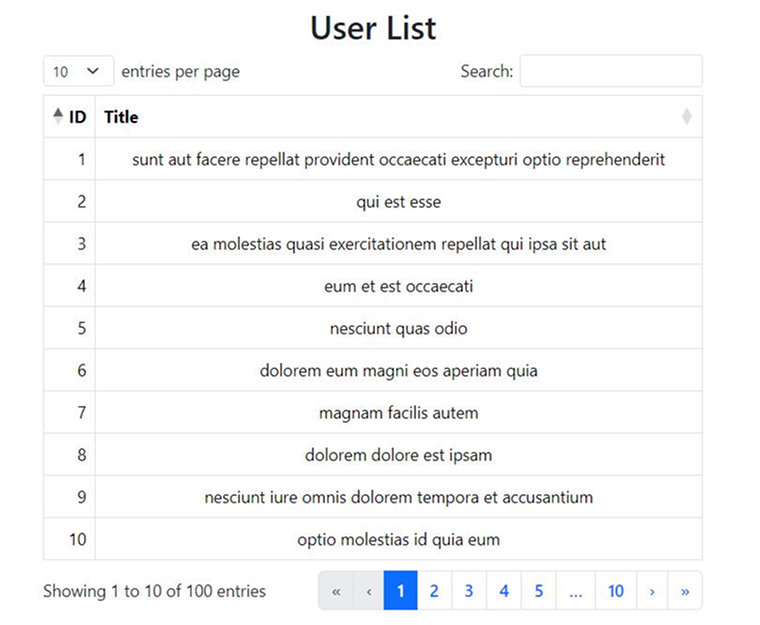
Code Explanation:
Ajax.url
The DataTable fetches data from the API endpoint, which is specified in the ajax.url. In the above example, data is fetched from: https://jsonplaceholder.typicode.com/posts
This endpoint returns JSON data and can represent a REST API, a backend service, or even a local JSON file.
DataSrc
This option tells the DataTables where to find the array of table rows within the API response.
- If the API returns an array directly, dataSrc should be set to an empty string (“”).
- If the API returns an object that contains a data array, such as { data: […] }, then dataSrc should be set to “data”.
It makes sure that DataTables reads and displays the incoming data correctly.
dataSrc: "" |
Case 1: API returns an array directly
[ { "id": 1, "title": "Post 1" }, { "id": 2, "title": "Post 2" } ] |
We can see from the above example that the response is the data array itself.
Setting: dataSrc: "" |
DataTables is instructed to use the response’s root level as the table data.
Case 2: API returns an object with data
{ "data": [ { "id": 1, "title": "Post 1" } ] } |
In this case, the actual row data resides in the data property.
Setting: dataSrc: "" |
It informs DataTables to extract the array from the data field and populate the table accordingly.
Columns
Column configurations define how the table columns map to the API response fields.
columns = [ { title: "ID", data: "id" }, { title: "Title", data: "title" } ] |
Each column’s data property corresponds to a key in the JSON object, allowing DataTables to populate each column with the correct values.
4. Reactive Data Updates in Vue 3 DataTables
Understand how Vue’s reactivity system makes sure that data is updated dynamically in Vue UI after data changes.
4.1 What are Reactive Data Updates?
Reactive data updates refer to Vue 3’s reactivity system, which automatically updates the user interface whenever changes are identified in the data. There are two types of data flows when using DataTables.
- Vue-managed reactive data (:data prop)
- DataTables-managed Ajax data (ajax option)
It is essential to understand when the data is controlled by Vue and when it is controlled by DataTables.
4.2 Reactive Data Updates Using: Data (Vue Controls Data)
Use this approach for the following:
- When the dataset is small or medium
- When the data is already in the frontend state
- When you want Vue to fully control data mutations
Basic Reactive Example
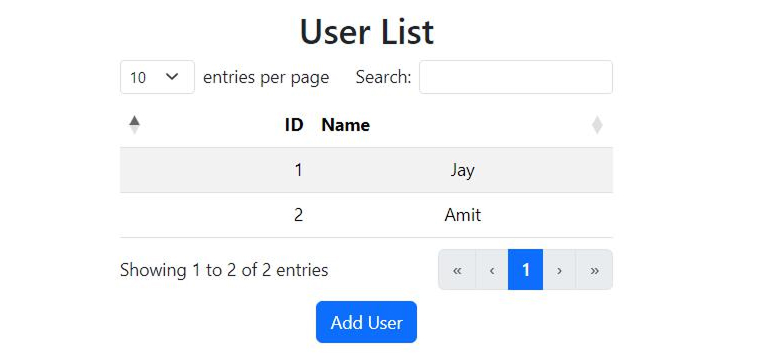
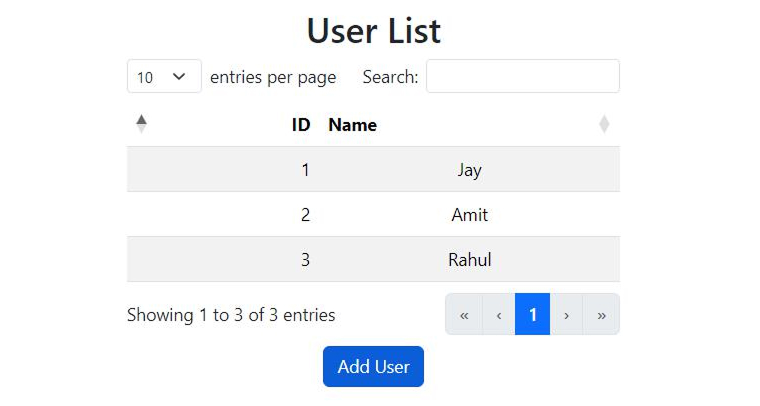
<script setup> import { ref } from "vue" const columns = [ { title: "ID", data: "id" }, { title: "Name", data: "name" } ] const users = ref([ { id: 1, name: "Jay" }, { id: 2, name: "Amit" } ]) const addUser = () => { users.value.push({ id: 3, name: "Rahul" }) } </script> <template> <DataTable :data="users" :columns="columns" class="table table-striped" /> <button class="btn btn-primary mt-2" @click="addUser"> Add User </button> </template> |
Output:
Before adding user
After adding the user
What Happens Internally?
- users is a reactive ref
- push() mutates the array
- Vue detects the change
- DataTables wrapper receives new data
- Table re-renders automatically
Data changes will be reflected in the UI without the need of a manual refresh.
Example: Remove a Row
const removeUser = (id) => { users.value = users.value.filter(u => u.id !== id) } |
4.3 Replacing the Entire Dataset (Best Practice)
When working with APIs or filters, replace the array instead of mutating it.
users.value = fetchedData; |
This approach ensures better performance, clean redraw, and no state rows.
4.4 Reactive Data with Computed Properties
You can pass computed data directly into DataTables
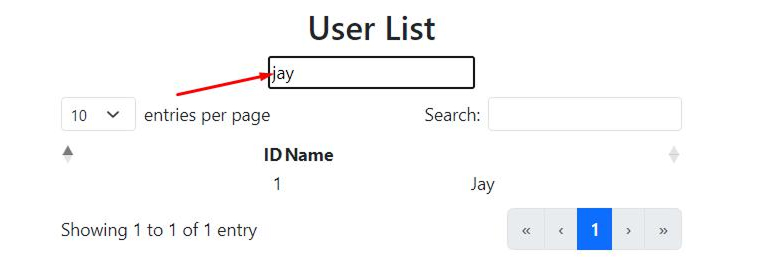
<script setup> import { ref, computed } from "vue" const search = ref("") const columns = [ { title: "ID", data: "id" }, { title: "Name", data: "name" } ] const users = ref([ { id: 1, name: "Jay" }, { id: 2, name: "Amit" } ]) const filteredUsers = computed(() => users.value.filter(u => u.name.toLowerCase().includes(search.value.toLowerCase()) ) ) </script> <template> <input v-model="search" placeholder="Search" /> <DataTable :data="filteredUsers" :columns="columns" /> </template> |
Output:
4.5 What is the DataTables API?
The DataTables API is the API that enables you to control and interact with the DataTables after they are created. It’s the reactivity system from Vue that manages data-driven updates. So, the DataTables API is used for tasks like searching, filtering, sorting, selecting rows, reloading Ajax data, and reloading table state. To put it simply, Vue’s reactivity system controls data, whereas the DataTables API controls table behavior.
4.6 Accessing the DataTables API in Vue 3
In datatables.net-vue3, the DataTables API instance is exposed as dt.
Basic setup:
<script setup> import { ref } from "vue" const tableRef = ref(null) </script> <template> <DataTable ref="tableRef" :data="data" :columns="columns" /> </template> |
Accessing the API
tableRef.value.dt
This dt object is the full DataTables API instance.
5. Core API Concepts
Let us understand the most important concepts and commonly used APIs with Vue DataTables.
5.1 API Methods are Chainable
Since most DataTables API methods return the same API instance, multiple operations can be linked together in a single line. For example:
tableRef.value.dt.search("Jay").draw() |
In the above command, the search() function applies the filter keyword, and the draw() function refreshes the user interface so that the changes are reflected. This chaining approach keeps the code clean and more readable.
5.2 DataTables Does Not Auto-refresh for API Calls
The table doesn’t get updated automatically after API methods change the state of the table when using DataTables. After performing actions like searching, sorting, or paging, you must call:
.draw() |
This function would update the data and render the layout on the screen.
5.3 Searching API
- Global Search: This API replaces the default search box behavior programmatically. It filters rows by searching across all columns.
dt.search("Jay").draw()
- Clear Search: If any search filter is applied, this API removes them, displaying all the rows.
dt.search("Jay").draw()
- Column-specific Search: Filter is applied to a specific column only.
dt.column(1).search("Amit").draw()
5.4 Paging API
- Change Page Length: Updates how many rows must be displayed per page.
dt.page.len(25).draw()
- Go to a Specific Page: Helps move to the specific page of the table.
dt.page(2).draw()
- Get Current Page Info: returns useful pagination details like current page number, total number of pages, start and end row indexes, total records, and displayed records after filtering. This helps customize pagination controls.
dt.page.info()
5.5 Sorting (Ordering) API
- Set Sorting Programmatically: Sorts the specified columns in descending order.
dt.order([0, "desc"]).draw()
- Multiple Column Sorting: Sorts multiple columns in a single go.
dt.order([<br> [0, "asc"],<br> [1, "desc"]<br> ]).draw()<br>
5.6 Row API
- Get All Rows: Returns all row data currently in the table.
dt.rows().data()
- Get a Single Row by Index: Fetches data from the specified row.
dt.row(0).data()
- Update a Row (API-controlled): Updates the specified row’s data and redraws the table. It is used when DataTables handles the data. The Vue state is updated directly in the case of Vue Reactive data.
dt.row(0).data({ id: 1, name: "Updated" }).draw()
- Remove a Row: Deletes the specified row from the table and refreshes the display.
dt.row(0).remove().draw()<br>
5.7 Selection API (with Select Extension)
- Get Selected Rows: Returns data for all the selected rows.
dt.rows({ selected: true }).data()
- Get Selected Indexes: Returns the index positions of the selected rows.
dt.rows({ selected: true }).indexes()
- Get Selected Indexes: Returns the index positions of the selected rows.
dt.rows(0).select()
dt.rows(0).deselect()
5.8 Ajax API
- Reload Ajax Data: Fetches fresh data from the API and refreshes the table.
dt.ajax.reload()
- Reload Without Resetting Page: Reloads data while keeping the user on the same page.
dt.ajax.reload(null, false)
- Check if Table Uses Ajax: Confirms if the table is configured to load data through Ajax.
dt.ajax !== undefined
5.9 Column API
- Get Column Data: Returns every value from the specified column.
dt.column(0).data()
- Show / Hide Column: Hides the specified column from the table view.
dt.column(2).visible(false)
- Get Column Header: Accesses the specified column’s header element, which helps in logic or custom styling.
dt.column(0).header()
5.10 Table State API
- Redraw Table: Refreshes the table display after any change.
dt.draw()
- Clear Table (Ajax only): Removes all rows from the table.
dt.clear().draw()
- Destroy Table: It removes the DataTable instance completely. This proves to be helpful when re-initializing or unmounting components.
dt.destroy()
5.11 Events API
- Listen to DataTables Events: Enables you to respond to user actions like searching, paging, sorting, and row selection. Some of the most common DataTable events include select, deselect, draw, page, order, and search.
dt.on("select", () => {
 console.log("Row selected")
 })
6. Styling & Customization
After creating a fully-functional DataTable, you must ensure it remains visually consistent with the rest of your app. For example, many Vue apps have Bootstrap for UI development. So, your DataTable must also follow the same design language.
According to that logic, you will need different styling packages aligning with different frameworks.
6.1 How Does DataTables Styling Work?
DataTables separates core functionalities like filtering, paging, and sorting from visual styling such as CSS and DOM structure. That is the reason why you need separate npm packages to handle styling.
6.2 Naming Convention
Let us consider a few important naming conventions.
- -dt → Default DataTables styling
- -bs5 → Bootstrap 5 styling
- -bs4, -bulma, -foundation, etc. → Other frameworks
6.3 Using Default DataTables Styling (-dt)
If you are not using any UI framework for styling, DataTables provides its own default style.
Install
npm install datatables.net-dt |
6.4 Import Styles (Vite-friendly)
<style> @import 'datatables.net-dt'; </style> |
This gives you a clean, neutral DataTable UI.
6.5 Using Bootstrap 5 Styling (Recommended)
The most common setup in a Vue app is to use Bootstrap 5.
Why use -bs5?
- Matches Bootstrap tables
- Uses Bootstrap pagination
- Uses Bootstrap form inputs
- Layout aligns with Bootstrap grid
Install required packages
npm install datatables.net-vue3 datatables.net-bs5 bootstrap |
6.6 Register Bootstrap Styling with DataTables
If you want the Bootstrap styling to work, the step given below is mandatory.
Vue component setup
<script setup> import DataTable from 'datatables.net-vue3' import DataTablesCore from 'datatables.net-bs5' DataTable.use(DataTablesCore) const columns = [ { data: 'name' }, { data: 'position' }, { data: 'office' }, { data: 'extn' }, { data: 'start_date' }, { data: 'salary' } ] </script> |
DataTablesCore from datatables.net-bs5 tells DataTables:
“Use Bootstrap 5 DOM structure and classes.”
6.7 Import CSS Styles
With Vite, CSS imports from node_modules work directly.
<style> @import 'bootstrap'; @import 'datatables.net-bs5'; </style> |
This loads Bootstrap base styles and also the DataTables with Bootstrap specific-styles.
6.8 Using Bootstrap Table Classes
Here, we use normal Bootstrap classes to style the table.
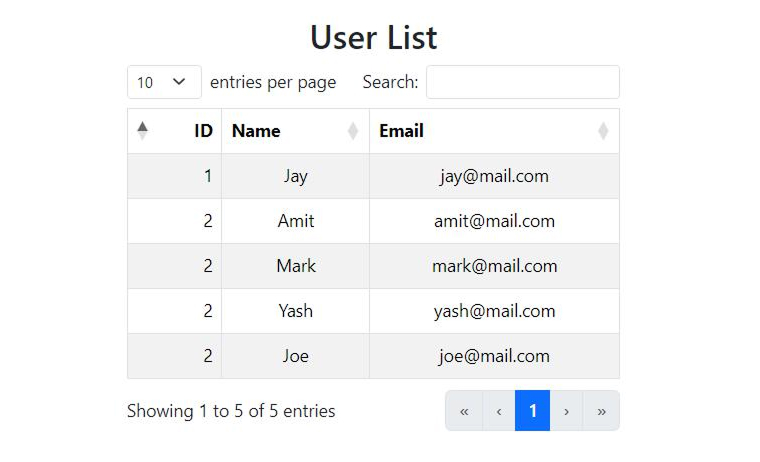
<DataTable class="table table-striped table-hover table-bordered" :columns="columns" :data="data" /> |
Output:
6.9 Where is Bootstrap Styling Used and How?
When using datatables.net-bs5:
- Pagination uses Bootstrap buttons
- Search input uses Bootstrap form styling
- Length dropdown matches Bootstrap selects
- Layout spacing follows Bootstrap rules
There is no need to style the table manually.
7. Conclusion
Vue applications can support dynamic data display that enhances user experience and engagement rate, leading to more conversions with the help of Vue DataTables. Vue offers various DataTable solutions, including UI frameworks and independent data table plugins to fulfill varying requirements ranging from simple applications to enterprise-grade grids.
In this article, we covered the entire process of using Vue DataTables in your app and styling them to maintain consistency with your app experience and align with your brand image.

Parind Shah is responsible for frontend innovations at TatvaSoft. He brings profound domain experience and a strategic mindset to deliver exceptional user experience. He is always looking to gain and expand his skill set.



Comments
Leave a message...