

Vue.js has become one of the most widely used JavaScript frameworks for building interactive and efficient web applications. Its flexibility, simplicity, and ease of integration make it a favorite among developers and businesses alike. With the release of Vue 3, the framework now offers strong TypeScript support, allowing developers to write cleaner, more reliable, and scalable code. This combination of Vue and TypeScript provides a powerful foundation for developing modern applications that are easy to maintain and extend over time.
A professional Vue.js development company can use these tools to create fast, secure, and maintainable solutions tailored to your business needs. In this article, we’ll explore how to set up a Vue project with TypeScript, migration tips, and address common challenges in the process, with their solutions. By the end, you’ll understand why TypeScript is becoming an essential part of modern Vue.js development.
What is TypeScript?
TypeScript is a programming language developed by Microsoft that builds on JavaScript by adding static typing, classes, and interfaces. It helps developers write cleaner and more reliable code by catching errors during compilation instead of at runtime. TypeScript is often described as a superset of JavaScript, meaning all JavaScript code is valid TypeScript code, but not vice versa. It introduces modern features such as type checking, generics, and object-oriented programming, making it ideal for large-scale applications.
TypeScript files use the .ts extension and are compiled into plain JavaScript using the TypeScript compiler before execution in browsers or Node.js. This compilation process improves debugging, readability, and maintainability. By enforcing strong typing and providing better tooling support, TypeScript makes code easier to understand, reduces bugs, and ensures greater consistency across projects. It bridges the gap between flexibility and structure in modern web development.
Let’s take a look at what a Reddit user says about Typescript.
Comment
byu/UltraX76 from discussion
injavascript
Prerequisites
Before starting, make sure you have:
- Node.js (preferably the LTS version) should be installed, along with npm or yarn.
- Understand the fundamentals of Vue, including how components and single-file components work.
- Be comfortable with modern front-end build tools; familiarity with Vite or Vue CLI is beneficial but not mandatory.
Editor Recommendations:
- Use Visual Studio Code with the Volar plugin, which is ideal for Vue 3 projects using TypeScript.
- For Vue 2 development, you can use the Vetur extension, although Volar is the preferred modern option.
Setting Up the Project
Here are three typical cases:
- starting a new project using Vite
- Setting up with Vue CLI if preferred
- integrating TypeScript into an already existing project.
Option A: Create a new Vue 3 + TypeScript project using Vite (recommended)
Vite provides a quick template for Vue + TypeScript.
# create the project npm create vite@latest my-vue-ts-app -- --template vue-ts |
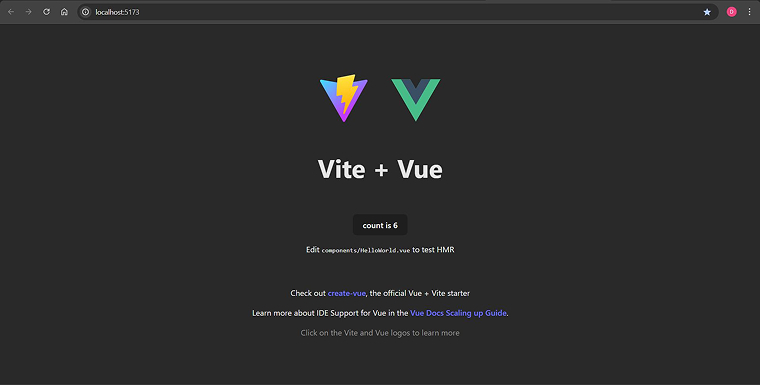
cd my-vue-ts-app npm install npm run dev |
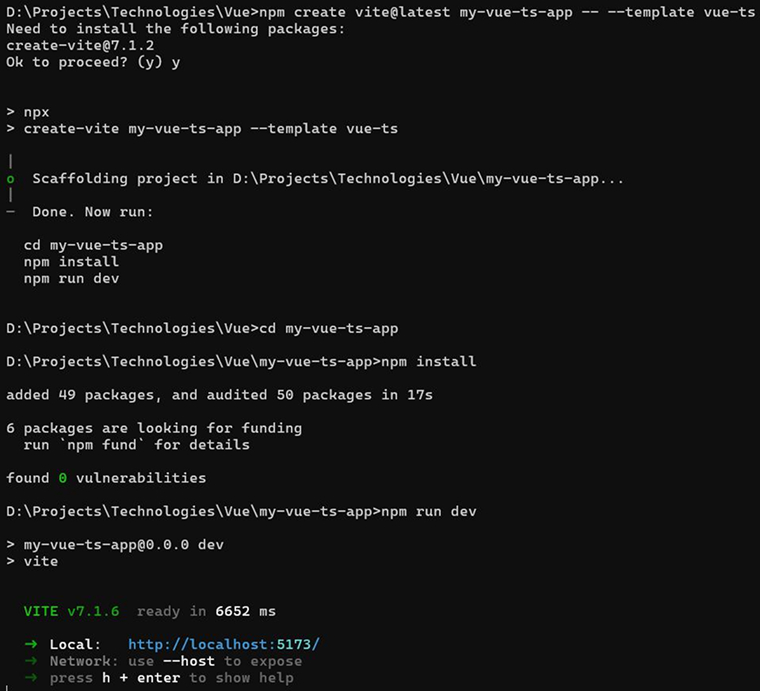
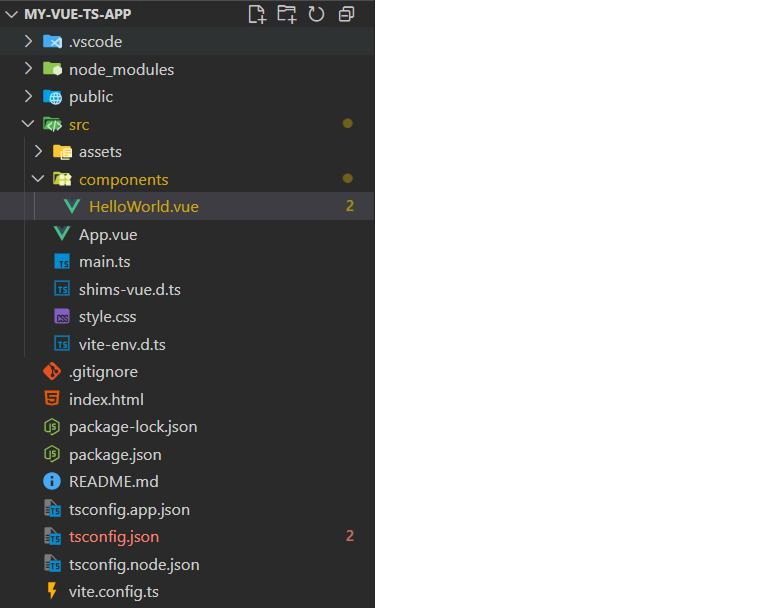
The template automatically configures TypeScript, tsconfig.json, and a shims declaration file. You’ll get a src/main.ts, src/App.vue, and examples in .vue files using <script lang=”ts”>.
Option B: Create via Vue CLI (Vue 2 or Vue 3)
If you use Vue CLI:
# interactive vue create my-vue-ts-app # choose "Manually select features" → check TypeScript |
Vue CLI can set up TypeScript integration and add linting and testing tools when selected.
Option C: Add TypeScript to an existing Vite-based Vue project
- Install TypeScript and related dev types:
npm install -D typescript @types/node
- Create a tsconfig.json file (sample shown below) or initialize it by running
npx tsc --init
Then modify the settings as needed. - Change your main entry file(s) to use the .ts or .tsx extension (for example, src/main.ts), and update Vue component <script> sections in your Vue components to include lang=”ts”. Additionally, add a Vue shim file as demonstrated below.
- Install the Volar extension in your code editor, then restart the editor to apply the changes.
How to Add TypeScript to a Vue Project?
Let’s take a look at how to add TypeScript to a Vue project.
1. Add a Vue shims File
File: src/shims-vue.d.ts
// src/shims-vue.d.ts declare module '*.vue' { import type { DefineComponent } from 'vue' const component: DefineComponent<{}, {}, any> export default component } |
Why this file?
TypeScript does not automatically recognize .vue single-file components. A shim file is used to inform the TypeScript compiler that files ending with .vue should be treated as Vue components. Without this shim, errors such as “Cannot find module ‘*.vue’” will occur. Using DefineComponent ensures the compiler identifies these imports as components and applies proper type checking.
Notes/tips
- Save the file inside the src/ directory and confirm that your tsconfig.json references src/**/*.d.ts.
- You can refine the typing later, such as by defining specific prop types, but this basic shim provides a safe and simple setup to begin with.
2. Example tsconfig.json for Vue 3 + Vite
{ "compilerOptions": { "target": "ES2020", "module": "ESNext", "moduleResolution": "Node", "lib": ["ESNext", "DOM"], "jsx": "preserve", "sourceMap": true, "strict": true, "noImplicitAny": true, "skipLibCheck": true, "esModuleInterop": true, "resolveJsonModule": true, "types": ["vite/client"] }, "include": ["src/**/*.ts", "src/**/*.d.ts", "src/**/*.tsx", "src/**/*.vue"] } |
Explanation of the important options
- target: “ES2020”: Converts TypeScript into modern JavaScript suitable for current browsers and Node.js environments.
- module: “ESNext”: Keeps the ES module syntax intact, which Vite relies on.
- moduleResolution: “Node”: Handles module imports the same way Node.js does.
- lib: [“ESNext”, “DOM”]: Adds type support for the latest JavaScript features and browser DOM objects.
- jsx: “preserve”: Retains JSX syntax for tools to process it; rarely used in Vue but safe to keep.
- sourceMap: true: Produces source maps to simplify debugging in browsers.
- strict: true: Activates all strict TypeScript checks for better code reliability; can be enabled gradually in large projects.
- noImplicitAny: true: Prevents using variables with an implicit any type, enforcing explicit type declarations.
- skipLibCheck: true: Ignores type checking for external .d.ts files to speed up builds and reduce irrelevant errors.
- esModuleInterop: true and resolveJsonModule: true: Improve compatibility with CommonJS modules and allow direct JSON imports.
- types: [“vite/client”]: Includes Vite’s type definitions (e.g., import.meta.env) to prevent TypeScript errors.
- Include: Ensures TypeScript processes .vue files and any custom type declarations in the project.
Migration advice
- Set “strict”: false initially when working with a large existing JavaScript project, then gradually enable strict mode for specific files or rules.
- Include “allowJs”: true if you plan to retain and work with .js files during the step-by-step migration process.
3. Rename and Update Files
Steps
- Change the main entry file name from src/main.js to src/main.ts.
- In Vue single-file components, modify the <script> tag to <script lang=”ts”>.
- Adjust import statements only if your setup specifically requires file extensions; most modern bundlers handle .ts files automatically.
Why rename?
Renaming the entry file with a .ts extension allows the compiler to perform type checking and enables TypeScript features such as types, interfaces, and enums. Setting lang=”ts” in Vue components activates TypeScript parsing within single-file components.
Tip
Renaming enables Volar, the preferred VS Code plugin for Vue 3 and TypeScript, to provide accurate type suggestions, completions, and checks within single-file components.
4. Using typed Single File Components (SFCs)
Composition API (explicitly defineComponent)
<!-- src/components/HelloWorld.vue --> <template> <div> <h1>{{ msg }}</h1> <button @click="increment">Clicked {{ count }} times</button> </div> </template> <script lang="ts"> import { ref, defineComponent } from 'vue' export default defineComponent({ props: { msg: { type: String, required: true } }, setup(props) { const count = ref<number>(0) function increment() { count.value++ } return { msg: props.msg, count, increment } } }) </script> |
Explanation
- defineComponent acts as a typed wrapper, enabling TypeScript and IDEs to recognize and validate component options such as props.
- Declaring ref<number>(0) assigns a specific type to the reactive variable, preventing unintended type conversions in future operations.
script setup (recommended ergonomics)
<script lang="ts" setup> import { ref } from 'vue' const props = defineProps<{ msg: string }>() const count = ref(0) function increment() { count.value++ } </script> |
Why script setup?
- Simpler syntax that compiles into an optimized runtime structure.
- defineProps<T>() function offers complete type safety and improved IDE support.
- Recommended approach for writing new Vue 3 projects with TypeScript.
Tip
Using <script setup> alongside Volar delivers a superior development experience, offering enhanced auto-completion, smarter type detection, and more accurate prop suggestions than previous tools.
5. Typing Props, Emits, Refs, and Components
Key Patterns
- defineProps<Type>(): specifies exact prop types for a component, ensuring clear and safe property usage.
- defineEmits<Type>(): defines the types of events a component triggers, improving type safety for event listeners.
- ref<Type>(): sets the data type for a reactive variable.
- ComputedRef<Type> and Ref<Type>: use these when exposing or annotating return types from setup.
Example
<script lang="ts" setup> import { ref } from 'vue' type Props = { initial: number } const props = defineProps<Props>() const emit = defineEmits<{ (e: 'update', value: number): void }>() const value = ref<number>(props.initial) function update(v: number) { value.value = v emit('update', v) } </script> |
Why do these matter?
Using typed props and emits makes a component’s expectations clear and validated at compile time, minimizing runtime issues and enabling safer refactoring—especially valuable in collaborative projects.
Common Pitfalls
- Avoid combining defineProps generics with a runtime props object—choose one consistent approach for better readability and maintainability.
- When creating and sharing composables, clearly specify return types to ensure users receive accurate type hints and autocompletion.
6. Interacting with Third-party Libraries
Best practices
- Use official type packages whenever possible, for example, by running npm i -D @types/lodash.
- Skip installing @types/* packages if the library already includes its own type definitions through a types field or .d.ts files.
- For packages lacking type support, create a basic declaration file to prevent TypeScript errors and gradually introduce proper typings later.
// src/types/shims-example-lib.d.ts declare module 'example-lib' { export function someFn(...args: any[]): any // add minimal signatures you need } |
Why does this help?
Creating simple type declarations helps prevent build errors and allows you to continue the migration smoothly. You can refine and replace these placeholders with complete types when ready.
7. Linting & Formatting
Install ESLint + TypeScript plugins
npm install -D eslint @typescript-eslint/parser @typescript-eslint/eslint-plugin eslint-plugin-vue |
Example .eslintrc.js
module.exports = { root: true, env: { node: true, browser: true }, parser: 'vue-eslint-parser', parserOptions: { parser: '@typescript-eslint/parser', ecmaVersion: 2020, sourceType: 'module' }, extends: [ 'plugin:vue/vue3-recommended', 'plugin:@typescript-eslint/recommended', 'prettier' ], rules: { // your team's rules } } |
Why is linting important?
- Maintains a uniform coding style and detects potential issues early, such as unused variables, type mismatches, or import inconsistencies.
- The @typescript-eslint plugin enables linting that fully understands TypeScript syntax and types.
- Use Prettier for automated formatting and ESLint to uphold code quality and best practices.
8. Build & CI
- Your current Vite or Vue CLI setup will function normally, as TypeScript is converted to JavaScript during the build process.
- In continuous integration, run npm ci or npm install, followed by npm run build and npm run lint (if linting is configured).
- Include tsc –noEmit in your CI pipeline to detect type errors, even when your bundler relies on tools like esbuild or swc.
Practical Migration Tips (Incremental Adoption)
- Set “allowJs”: true and “checkJs”: false in your tsconfig.json to keep existing JavaScript files unchanged.
- Begin migration by renaming smaller utility files or modules from .js to .ts to gradually introduce type safety.
- Update components or features one at a time, using the Composition API for clearer and stronger typing.
- Use // @ts-ignore only when necessary, and document each instance for later cleanup.
Common Pitfalls & How to Avoid Them
- Missing shims: Without shims-vue.d.ts, TypeScript won’t recognize .vue imports, resulting in errors. Create this file at the beginning of your setup.
- Editor configuration: Use Volar instead of Vetur for Vue 3 with TypeScript to ensure the best developer experience.
- Strict mode issues: Enabling strict mode may reveal numerous type problems, so enable it gradually, step by step.
- Prop and emit typings: Use defineProps<T>() and defineEmits<T>() to define props and events clearly and safely.
- External libraries: When a library lacks type definitions, add a minimal .d.ts shim to maintain compatibility until full type definitions become available.
Final Thoughts
Incorporating TypeScript into Vue.js development enhances productivity, maintainability, and code safety. By introducing static typing and strong tooling support, it helps developers catch errors early and maintain consistency as projects grow. Starting small and gradually integrating TypeScript allows teams to build confidence while improving long-term scalability. Backed by Microsoft and supported by an active open-source ecosystem, TypeScript continues to strengthen modern web development, making the combination of Vue.js and TypeScript a powerful foundation for building reliable, future-ready applications.
FAQs
TypeScript is a programming language that serves as a superset of JavaScript, adding static typing to help catch errors during development. Vue is a progressive UI framework designed for building user interfaces and single-page applications, providing tools and structure to streamline the development process.
TypeScript provides static type checking, which catches type-related errors during development rather than at runtime. It also offers autocompletion and refactoring support, enhancing code reliability and maintainability.

Parind Shah is responsible for frontend innovations at TatvaSoft. He brings profound domain experience and a strategic mindset to deliver exceptional user experience. He is always looking to gain and expand his skill set.



Comments
Leave a message...